

URL
The Call Logs page
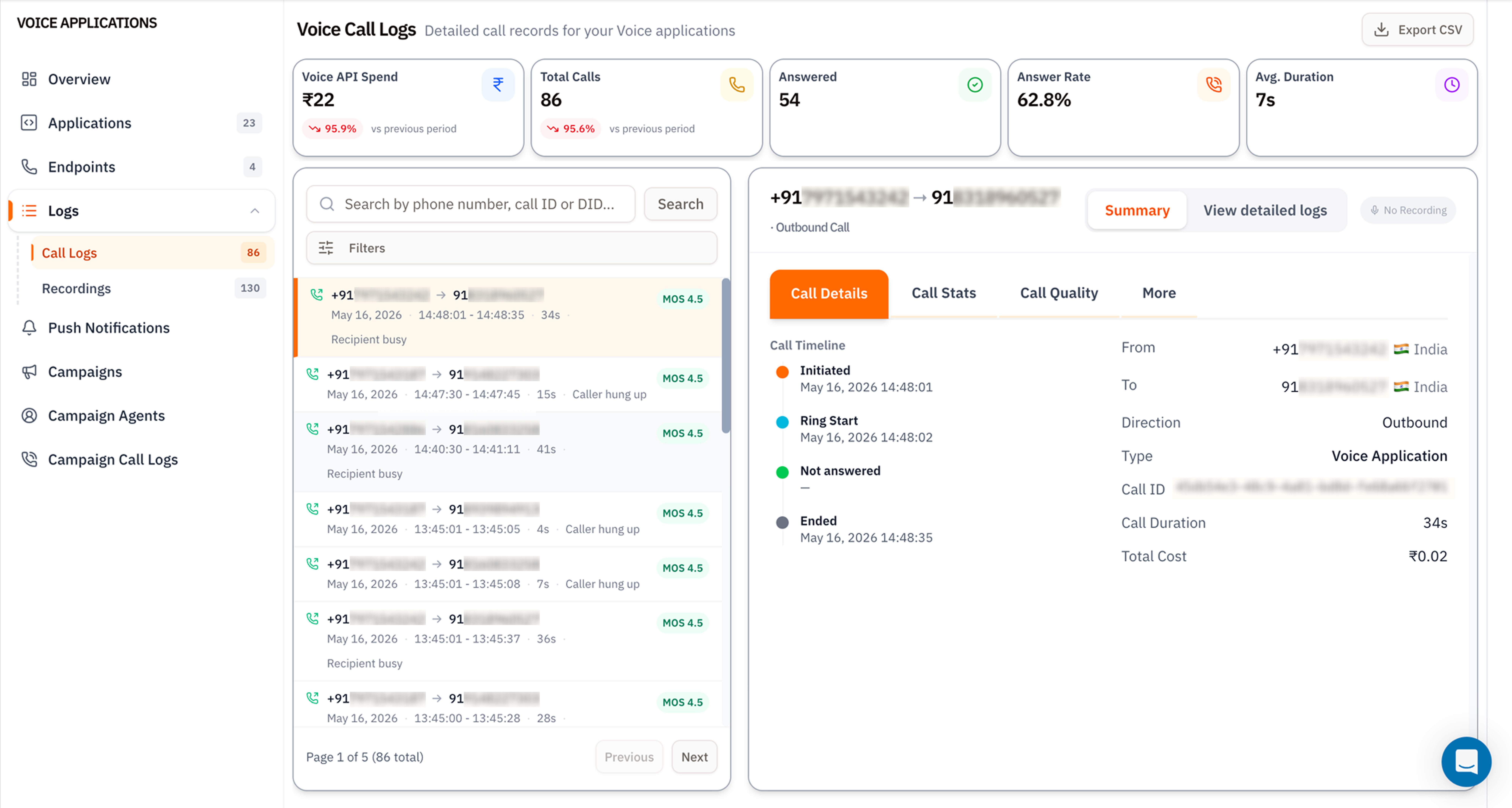
1. KPI tiles
| Tile | What it measures |
|---|---|
| Voice API Spend | Total INR spent on the selected date range. |
| Total Calls | Every attempt - answered, busy, failed, rejected. |
| Answered | The subset that connected (callee picked up). |
| Answer Rate | Answered / Total Calls. |
| Avg. Duration | Mean talk time across answered calls. |
2. Call list
The left column lists every call in the date range. Each row shows:- From → To numbers (with direction icon).
- Date and timestamps (
HH:MM:SS - HH:MM:SS) plus duration. - Hangup cause badge - Caller hung up, Recipient busy, Not answered, etc.
- MOS score - Mean Opinion Score (1.0–5.0). 4.0+ is good, 3.5–4.0 acceptable, below 3.5 indicates audible quality issues.
3. Call Details panel
The right side has four tabs:- Call Details - Call Timeline (Initiated → Ring Start → Answered/Not answered → Ended), From/To with country flag, Direction, Type (Voice Application, SIP, API), Call ID (the canonical handle to quote in support tickets), Call Duration, and Total Cost.
- Call Stats - packet loss, jitter, codec, network conditions.
- Call Quality - MOS breakdown by leg (inbound vs outbound).
- More - raw SIP headers, full hangup cause code, redirect history.
- Summary / View detailed logs toggle - flip between the timeline view and a full SIP message log.
- No Recording badge - turns into a ▶ Play button if the call was recorded (Recordings).
Search and filter
The two controls above the call list:- Search by phone number, call ID or DID - substring match across
from,to, the Call ID UUID, and the DID it routed through. - Filters - opens the side panel for structured filtering.
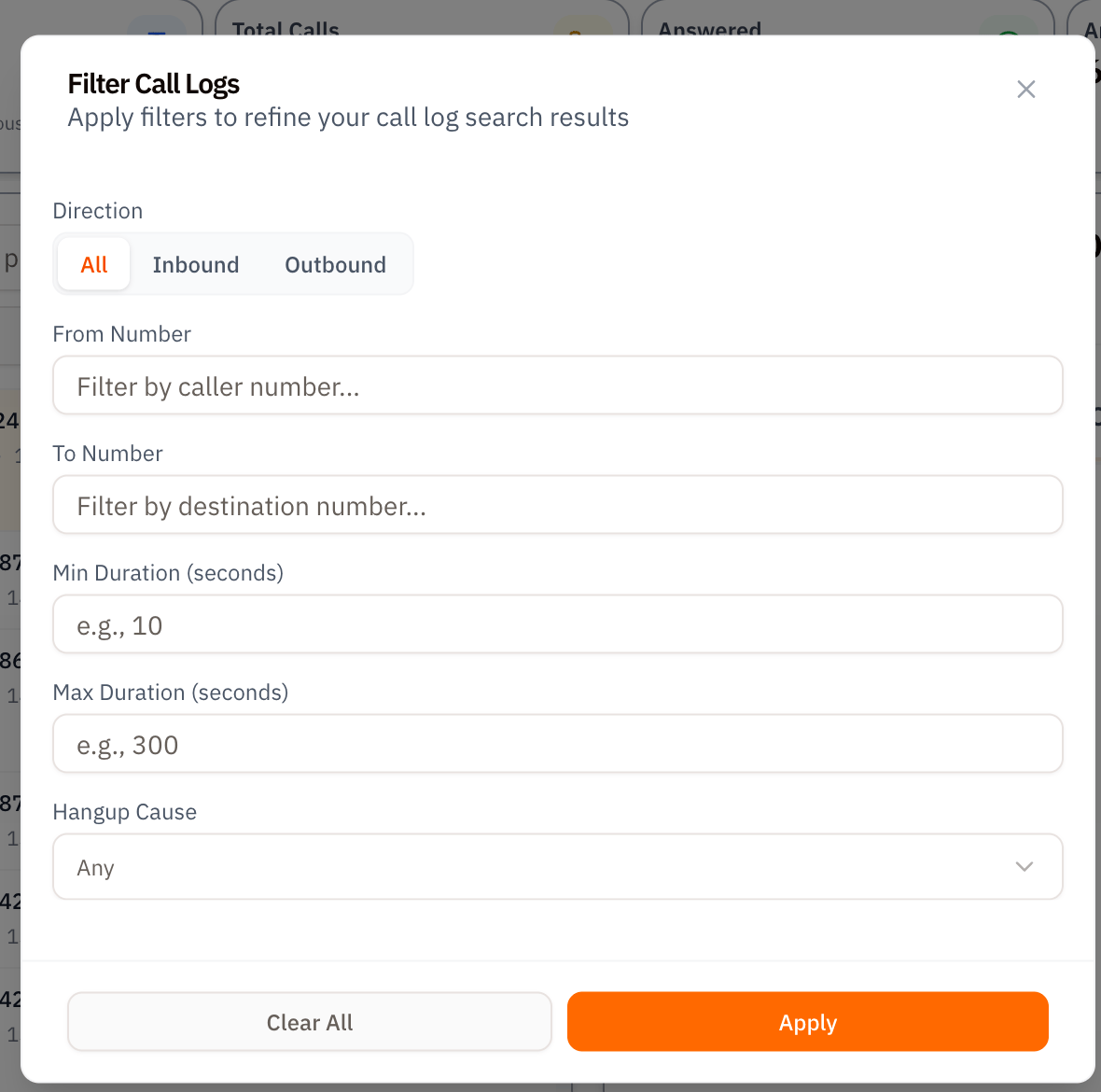
| Filter | Type | Use it for |
|---|---|---|
| Direction | All / Inbound / Outbound | Isolate one direction. |
| From Number | Substring | Find calls from a specific caller. |
| To Number | Substring | Find calls to a specific destination - useful for spotting hot leads. |
| Min Duration (seconds) | Number | Hide quick rejects: set to 10 to exclude < 10s calls. |
| Max Duration (seconds) | Number | Find unusually short calls - 5 surfaces drops and immediate rejects. |
| Hangup Cause | Dropdown | Pick Caller hung up, Recipient busy, Not answered, Network error, etc. |
Export to CSV
The Export CSV button (top‑right of the page) downloads every call in the current filter + date range as a CSV file. Columns include all the fields visible in the details panel plus the Call ID - ready to drop into a spreadsheet or load into BigQuery for deeper analysis.Tips
- Always quote the Call ID when filing a support ticket. It’s the canonical handle and lets Vobiz support trace the call across every internal system.
- MOS < 3.5 consistently usually means a network problem on the caller’s side or codec mismatch - open Call Stats to confirm.
- Page 1 of N at the bottom - pagination is server‑side. Filters apply before pagination, so deep paging stays fast.
What’s next
Recordings
Play and download the audio for calls flagged here.
CDR API
Pull the same data programmatically with
X-Auth-ID and X-Auth-Token.