

console.vobiz.ai is your control panel for the Vobiz voice platform - buying phone numbers, configuring SIP trunks, building XML applications, running outbound campaigns, and monitoring every call your account makes. This page covers both signing in to an existing account and creating a new account from scratch.
Already have an account?
Sign in with email + password or Google SSO.
New to Vobiz?
3‑step signup with ₹25 free credit to make your first call.
Sign in
Login URL
The login screen at a glance
The Vobiz login page is split into two halves: a branded marketing panel on the left and the sign‑in form on the right.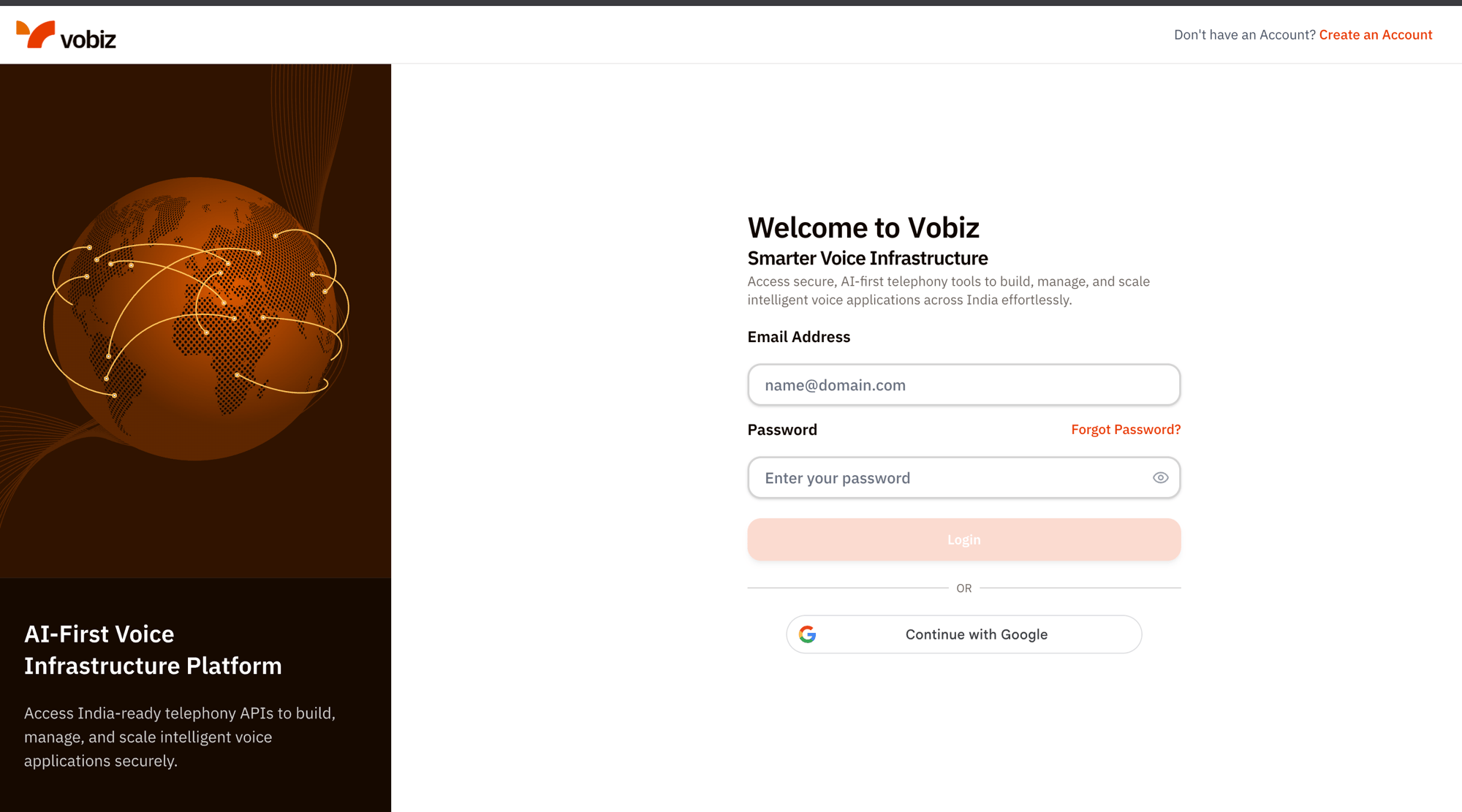
- Left panel - branding and the AI‑First Voice Infrastructure Platform tagline. Decorative; nothing to click.
- Right panel - the live sign‑in form. Everything below documents this side.
- Top‑right link - Don’t have an Account? Create an Account jumps to the signup flow below.
Sign in with email + password
The default sign‑in method. Use the email and password you set when you signed up for Vobiz.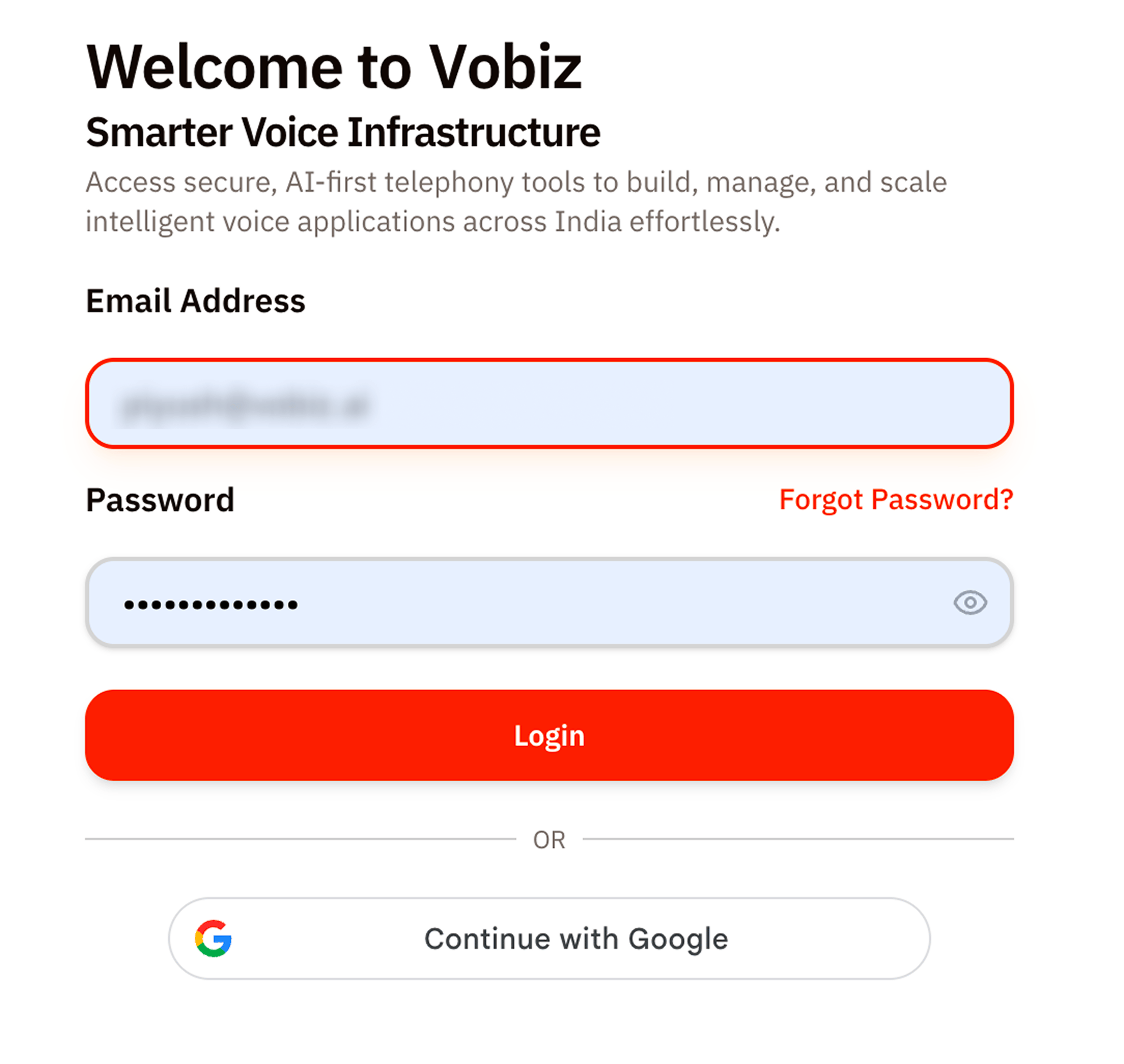
Enter your Vobiz email
Type the email address linked to your Vobiz account (e.g.
name@yourcompany.com). The field validates the format inline - fix any red‑bordered typos before continuing.Email is case‑insensitive.
Name@Vobiz.ai and name@vobiz.ai resolve to the same Vobiz Console account.Enter your password
Type your password into the masked field. Click the eye icon (👁) on the right to reveal what you typed - useful if you’re not sure you typed the right characters or you’re recovering from a paste.The Login button stays disabled (light orange) until both fields contain valid values. Once both are valid, it turns solid orange and is ready to submit.
Click Login
On success, Vobiz redirects you to the Dashboard for your account. On failure, the form shows an inline error message:
| Error | What it means | Fix |
|---|---|---|
| Invalid credentials | Email or password is wrong. | Retype both. If you’re sure the email is right, use Forgot Password? |
| Account not verified | You haven’t clicked the verification link from signup. | Check your inbox (and spam) for the verification email from no-reply@vobiz.ai. |
| Too many attempts | You hit the brute‑force rate limit. | Wait 15 minutes or reset your password via the link below. |
Sign in with Google
If you registered with Google Workspace or want to skip managing a Vobiz‑specific password, use Google single sign‑on.- Click Continue with Google below the password form to open the Google OAuth popup.
- Pick the Google account that matches your Vobiz email and approve the consent prompt.
- If a Vobiz account already exists for that email, you’re signed straight in. If not, you’re redirected to the signup flow with the email pre‑filled.
- If your Vobiz account was originally created with email + password, Google SSO will link to the same account the first time you use it - same data, new sign‑in method.
Forgot your password?
The Forgot Password? link sits on the right side of the Password label.Check your inbox
Vobiz sends a one‑time password reset link to that address. The link expires after 30 minutes.
Create an account
Sign-up URL
The signup screen at a glance
Every step shows the same left‑side panel - “Scale your business communications globally” - plus a 3‑step progress indicator at the top right (Account → Details → Verify) and a “Already have an account? Log in” link in the top‑right corner.Step 1 · Create Your Account
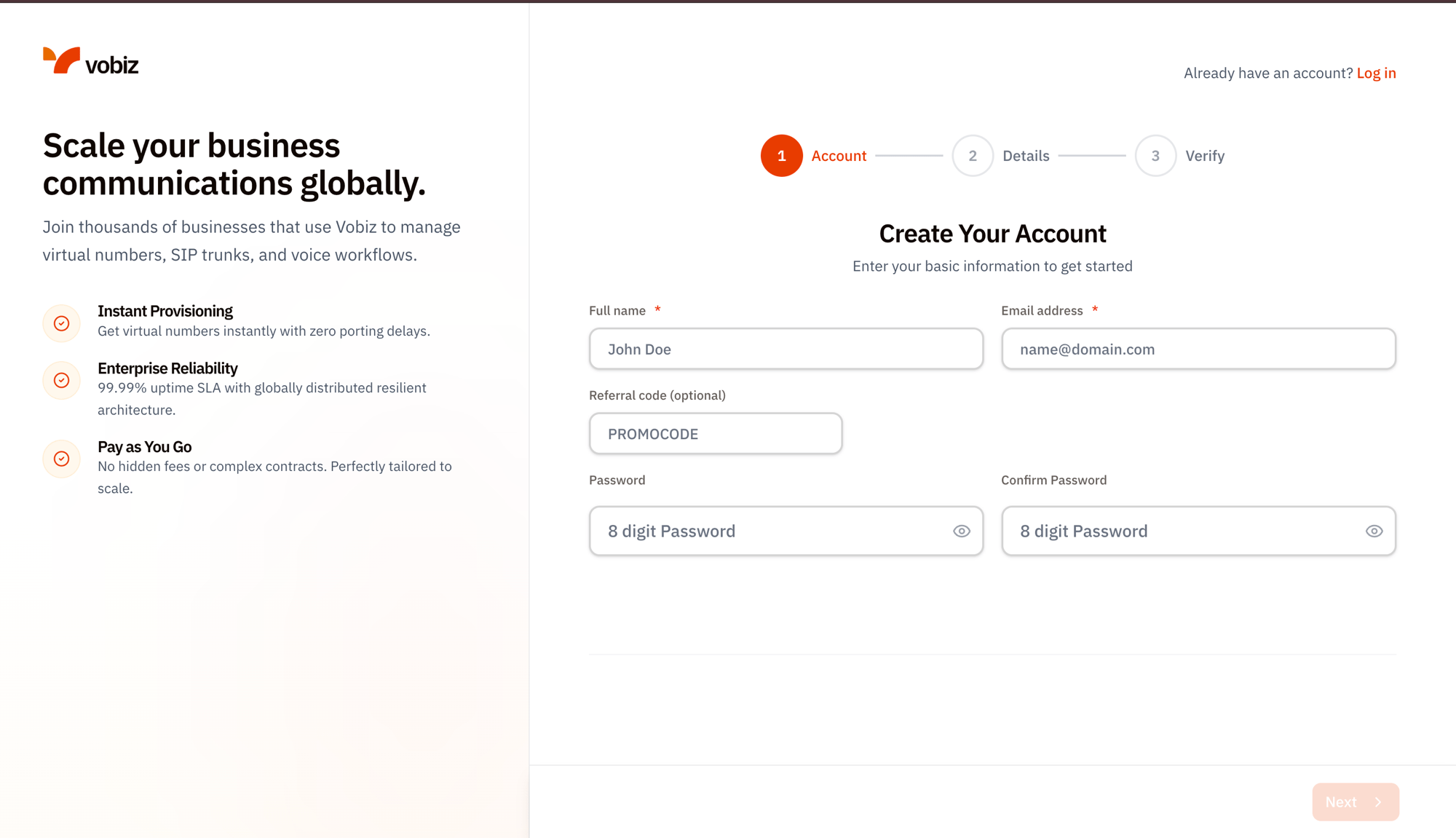
| Field | Required | Notes |
|---|---|---|
| Full name | ✅ | The person who owns this account. Editable later under Profile menu. |
| Email address | ✅ | The address Vobiz sends the verification code to in Step 3. Becomes your sign‑in email. |
| Referral code (optional) | – | Got a promo code? Type it here to apply a one‑time credit on top of the default ₹25 starter. |
| Password | ✅ | Minimum 8 characters. Click the eye icon (👁) to reveal what you typed. |
| Confirm Password | ✅ | Must match the password above. |
The email is case‑insensitive -
Name@Company.com and name@company.com resolve to the same Vobiz account. Pick the casing that matches your inbox.Step 2 · Additional Information
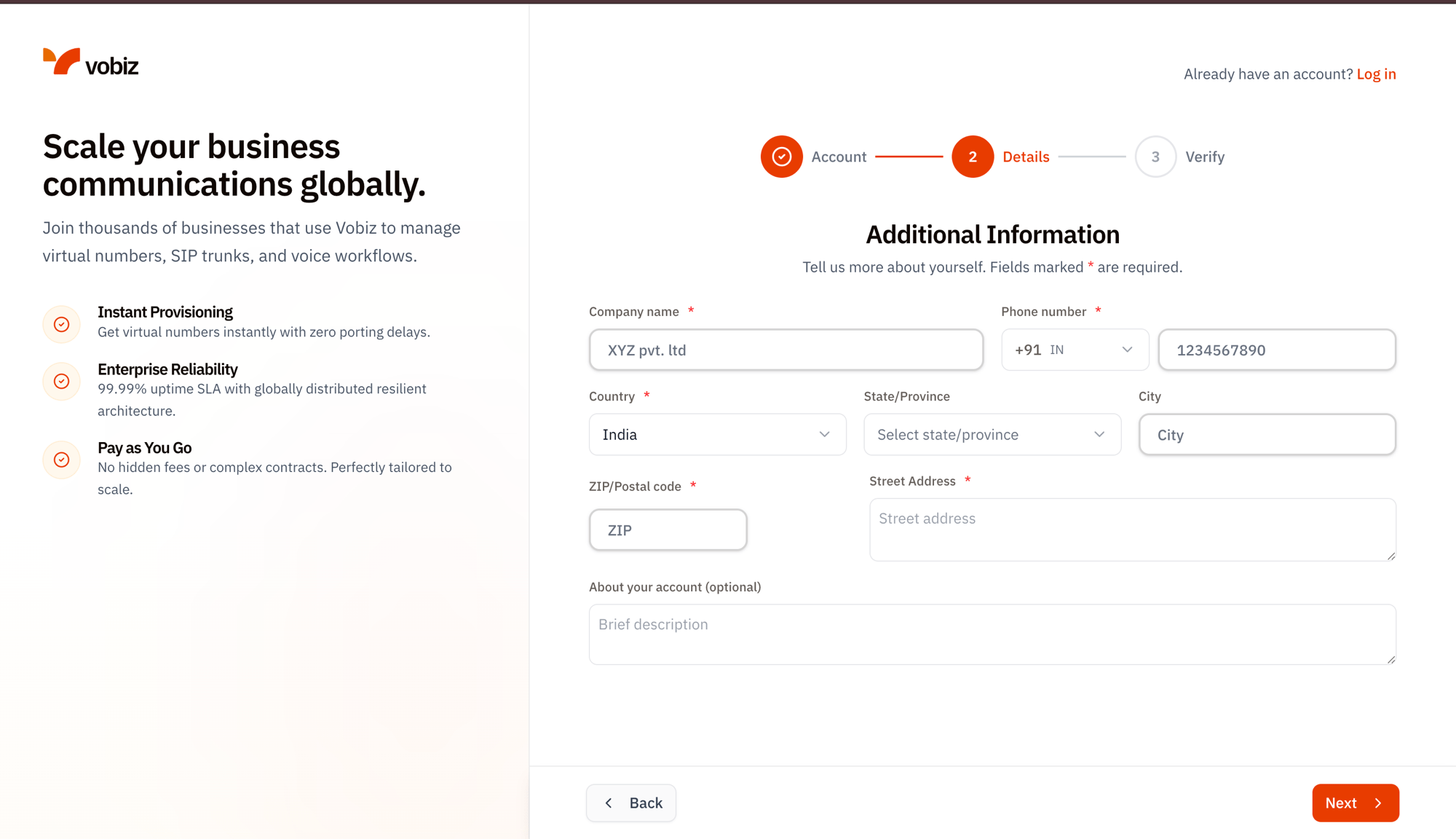
| Field | Required | Notes |
|---|---|---|
| Company name | ✅ | The legal business entity (e.g. XYZ Pvt. Ltd.). Used on invoices. |
| Phone number | ✅ | Country dial code (+91 IN default) + local number. This is your contact number, not a Vobiz DID. |
| Country | ✅ | Drives the available State/Province list below. Defaults to India. |
| State/Province | ✅ | Drop‑down dependent on Country. |
| City | ✅ | Free‑text city name. |
| ZIP/Postal code | ✅ | Numeric postal code. India = 6 digits. |
| Street Address | ✅ | Full street address - used on invoices and KYC. |
| About your account (optional) | – | One‑liner about your use case. Helps Vobiz support tailor onboarding (e.g. “AI voice agent for healthcare appointments”). |
Step 3 · Verify Your Email
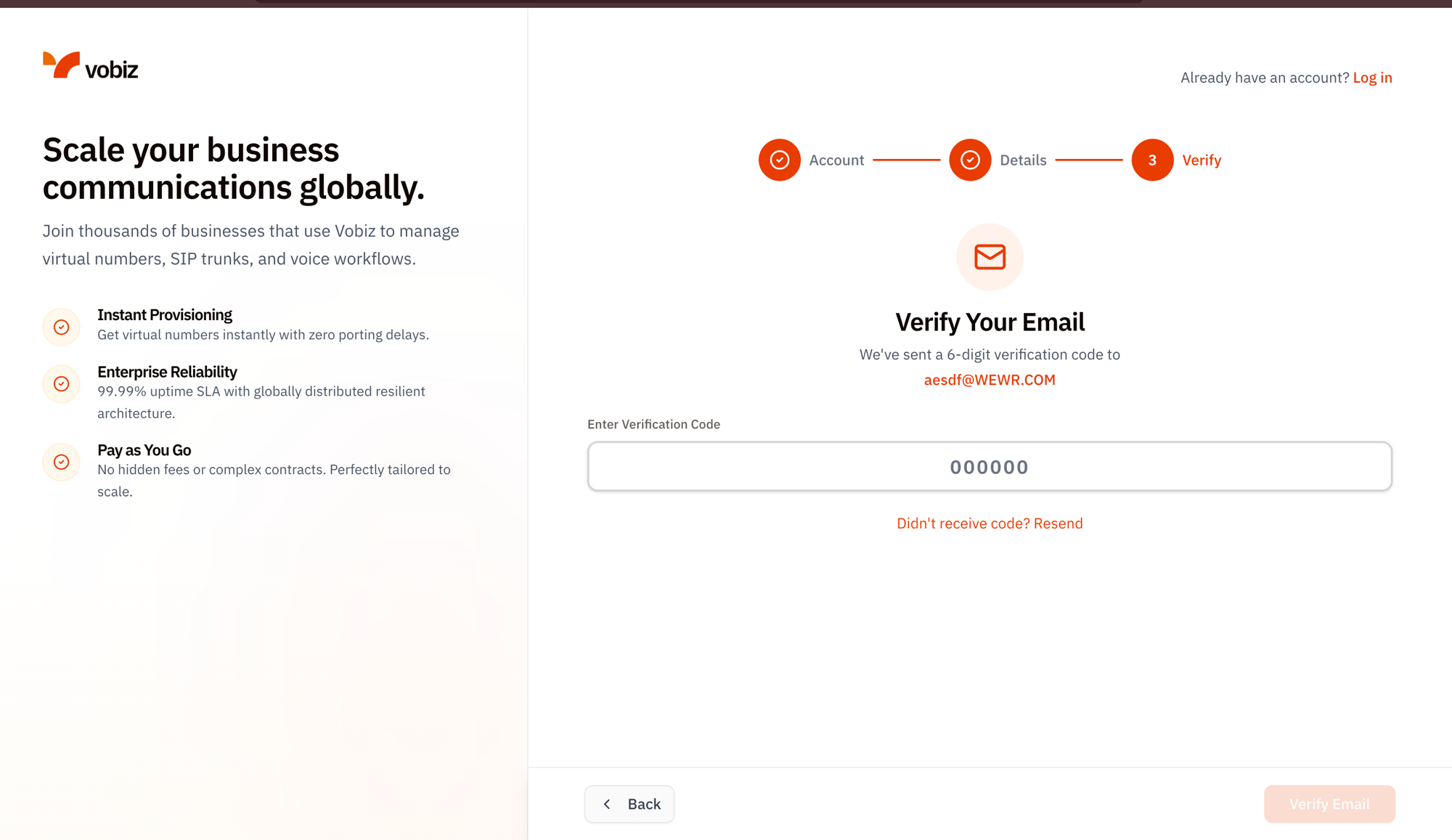
Open your inbox
Look for an email from
no-reply@vobiz.ai with the subject “Your Vobiz verification code”. Check spam if it’s not in your inbox after ~30 seconds.Type the 6-digit code
Enter the code in the input field. The Verify Email button enables once all 6 digits are filled.
Click Verify Email
On success, you’re redirected to the Dashboard and your ₹25 free credit is loaded automatically.
If the code doesn’t arrive
Click Didn’t receive code? Resend below the input.- The link triggers a fresh email after a brief cooldown (typically 30–60 seconds).
- If three resends fail, the email address is likely blocking
vobiz.ai- addno-reply@vobiz.aito your safe senders or contact your IT admin. - Wrong email entered in Step 1? Click Back twice to return to Step 1 and fix it.
The verification code expires after 30 minutes. If yours has expired, click Resend for a new one - the old code is invalidated immediately.
What you get on day one
| Perk | Detail |
|---|---|
| ₹25 starter credit | Enough for ~50 minutes of domestic India outbound or ~20 minutes of premium outbound. |
| Test phone numbers | Buy a DID from the Phone Numbers section - purchase fee deducted from your starter credit. |
| Full API access | Auth ID and Auth Token live and ready in the Dashboard - no waiting for activation. |
| Sandbox‑equivalent | Vobiz doesn’t have a separate sandbox - your live account is the sandbox until you’re ready to scale. |
What’s next
Dashboard tour
Every tile, chart, and credential on the Vobiz Console home screen.
Make your first call
Buy a number, set up a SIP trunk or XML app, and place a real call in under 5 minutes.
Troubleshooting
Sign-in problems
- Login button stays greyed out. One of the fields is empty or invalid. Both email and password must have values; the email needs an
@. - Google SSO popup is blocked. Allow popups for
console.vobiz.aiin your browser settings and click Continue with Google again. - Reset email never arrives. Confirm the email matches the one on your Vobiz account. If you signed up with Google SSO there is no password - use Continue with Google instead of trying to reset.
- Account is locked. Five failed sign‑in attempts triggers a 15‑minute lockout. Use Forgot Password? during the lockout window or just wait it out.
Signup problems
- “Email already in use” on Step 1 → that email already has a Vobiz account. Use the Sign in section above, or click Forgot Password? to recover.
- Verification email never arrives → check spam, then add
no-reply@vobiz.aito safe senders. Still nothing? Email support@vobiz.ai from the same address you tried to sign up with. - Stuck on Step 2 with “State/Province” not loading → reload the page and re‑enter Step 1. Some browser extensions block country‑state dropdown fetches.
- ₹25 credit not showing on Dashboard → it lands within a minute of verification. If it’s still missing after 5 minutes, ping support - they can apply it manually with your account email.