Documentation Index

Fetch the complete documentation index at: https://docs.vobiz.ai/llms.txt

Use this file to discover all available pages before exploring further.

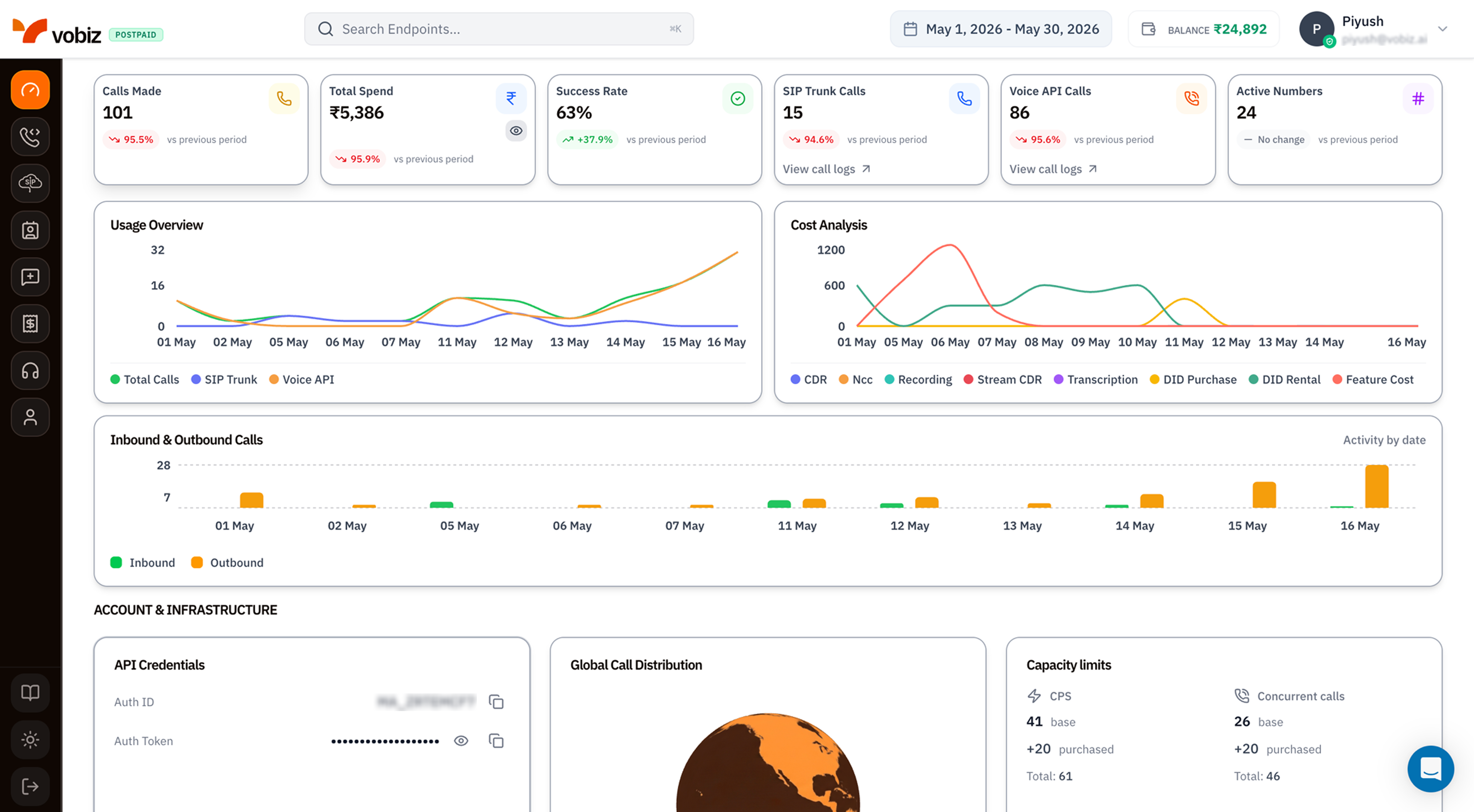
The Dashboard is the first screen you see after signing in. It’s the single‑page snapshot of your account: how many calls you’ve placed, what you’ve spent, how much capacity you have left, and where to find the credentials your code needs.
URL
https://console.vobiz.ai/app/dashboard
Vobiz dashboard showing KPI tiles (Calls Made, Total Spend, Success Rate, SIP Trunk Calls, Voice API Calls, Active Numbers), Usage Overview and Cost Analysis line charts, Inbound vs Outbound bar chart, and Account & Infrastructure section with API credentials, global call distribution, and capacity limits
The page is laid out top‑to‑bottom in five bands. The rest of this page walks each band, left‑to‑right.

1. Top bar

The fixed bar at the very top of every console page.
ElementWhat it does
Vobiz logo + plan badge (POSTPAID / PREPAID)Click the logo to return to the dashboard from anywhere. The badge shows your current billing mode — see Billing model to switch.
Search Endpoints… (⌘K / Ctrl+K)Global search across pages, numbers, trunks, and applications. Hit ⌘K (Mac) or Ctrl+K (Windows / Linux) from any screen.
Date range (May 1, 2026 – May 30, 2026)Drives every chart and KPI tile on the page. Click to pick a different window — last 7 days, last 30 days, this month, custom range.
BALANCEWallet balance in INR. Click to open the Transactions view and top up.
Profile menu (avatar)Switch sub‑accounts, manage API keys, change password, sign out.

2. KPI tiles

Six tiles summarising the date range you picked. Every tile shows the current period value plus a trend pill comparing it to the previous period of the same length.
TileWhat it measuresAction
Calls MadeTotal call attempts in the range.Click the tile to deep‑link into CDRs filtered to this window.
Total SpendSum of all charges (voice + numbers + features) in INR. The eye icon toggles the value’s visibility — useful when sharing your screen.Click to open Transactions.
Success Rateconnected / total attempts for the range, expressed as a percentage.
SIP Trunk CallsCalls placed through your SIP trunks. Includes the View call logs link → SIP Call Logs.View logs.
Voice API CallsCalls placed via the REST API and XML applications. Includes View call logsVoice Call Logs.View logs.
Active NumbersPhone numbers currently rented on your account.Click to open Phone Numbers.
The trend pill colours:
  • Green ↑ — value increased vs the previous period.
  • Red ↓ — value decreased.
  • Grey “No change” — same as previous period.
The pill compares like‑for‑like windows. A 30‑day current period is compared to the 30 days immediately before it.

3. Usage & cost charts

Two side‑by‑side line charts that animate when you change the date range.

Usage Overview

Plots three series per day:
  • Total Calls (green) — every connected call.
  • SIP Trunk (purple) — the subset routed through trunks.
  • Voice API (orange) — the subset via REST / XML.
Hover any day to see the exact counts in a tooltip. Click a legend entry to hide/show that series.

Cost Analysis

Breaks your spend down by line item per day:
SeriesWhat it includes
CDRVoice minutes (the bulk of most accounts).
NCCNetwork connection charge (per‑call surcharge where applicable).
RecordingStorage + retrieval of call recordings.
Stream CDRAudio streaming time over WebSockets.
TranscriptionSTT / ASR usage during <Gather> and stream sessions.
DID PurchaseOne‑time number purchase fees.
DID RentalMonthly number rental.
Feature CostAdd‑ons like premium routing, CNAM lookups, etc.
A red spike in Stream CDR with no matching spike in CDR usually means a long‑lived WebSocket stream wasn’t closed when the call ended. Audit your stream stop handling — see Stream events.

4. Inbound & Outbound Calls

A daily bar chart with two stacked series:
  • Inbound (green) — calls received on your numbers.
  • Outbound (orange) — calls placed from your account.
The Activity by date label at the top‑right is the only legend; click either colour swatch at the bottom to filter the chart to that direction alone.
If you expected outbound traffic but see only green bars, your last campaign likely didn’t run. Check Voice Call Logs for the date and look for ERROR rows.

5. Account & Infrastructure

The bottom section groups everything you need to integrate with the API into three cards.

API Credentials

FieldWhat it isUse it for
Auth ID (e.g. MA_ZRTEMCF7)Your account identifier. Public — safe to include in URLs and logs.The X-Auth-ID header on every API request, and the partner API.
Auth TokenYour secret. Click the eye icon (👁) to reveal, the copy icon (⧉) to copy. Treat this like a password.The X-Auth-Token header on every API request.
Never paste the Auth Token into client‑side code, public repos, or screenshots. If it leaks, rotate it immediately from Profile menu → API Keys.
Example request
curl https://api.vobiz.ai/api/v1/accounts \
  -H "X-Auth-ID: MA_ZRTEMCF7" \
  -H "X-Auth-Token: <your-token>"

Global Call Distribution

The world map shows where calls originated and terminated in the selected date range. Darker regions = more traffic. Hover any country to see the per‑country call count and spend. Useful for spotting:
  • Unexpected geographies — a sudden cluster in a country you don’t serve usually means a misconfigured campaign or fraud. Cross‑check in CDRs and block the country in your dialler if needed.
  • Regulatory hot spots — heavy India traffic? Make sure you’re current on DLT registration and KYC.

Capacity limits

Two side‑by‑side counters showing how much call capacity your account is provisioned for.
CounterWhat it means
CPS (Calls Per Second)The peak rate at which Vobiz will accept new call attempts from you. base is included in your plan; purchased is the add‑on you bought; Total is the sum and the actual cap.
Concurrent callsThe maximum number of calls that can be in progress simultaneously on your account. Same base + purchased = Total math.
Plan your campaigns against Total, not base. If a dialler attempts more than Total CPS, the extra attempts get a 429 Too Many Requests response — see Error 429.
Need more capacity? Use the CPS & Cost Calculator to size what you need, then ping support@vobiz.ai to provision. The vertical icon strip on the far left is the primary navigation. From top to bottom:
IconSectionWhat you do there
GaugeDashboardYou’re here.
PhoneCall ManagementActive calls, queued calls, live transfers.
CloudSIPTrunks, credentials, IP ACLs, origination URIs.
ID cardNumbers / DIDRent and manage phone numbers.
Speech bubbleXML ApplicationsBuild and assign programmable call flows.
ReceiptBillingTop‑ups, invoices, transactions.
HeadsetRecordingsBrowse and download call recordings.
PersonSub‑AccountsManage child accounts under a parent.
Book (bottom)DocsOpens docs.vobiz.ai in a new tab.
Sun (bottom)ThemeToggle light/dark mode.
Door (bottom)Sign outLog out and return to the Login screen.

Tips

  • Bookmark console.vobiz.ai/app/dashboard. It’s the fastest way back if you get lost in nested settings.
  • Pin the date range to “Last 7 days” in your head — almost every triage starts there before you zoom out.
  • Watch the BALANCE pill. Postpaid accounts can run negative briefly, but prepaid accounts will hard‑stop calls at ₹0. Set up auto‑recharge in Billing to avoid surprises.

What’s next

Quick Start

Make your first call in under 5 minutes using these credentials.

API Reference

Drop the Auth ID and Auth Token straight into the live API explorer.