

URL
The endpoints list
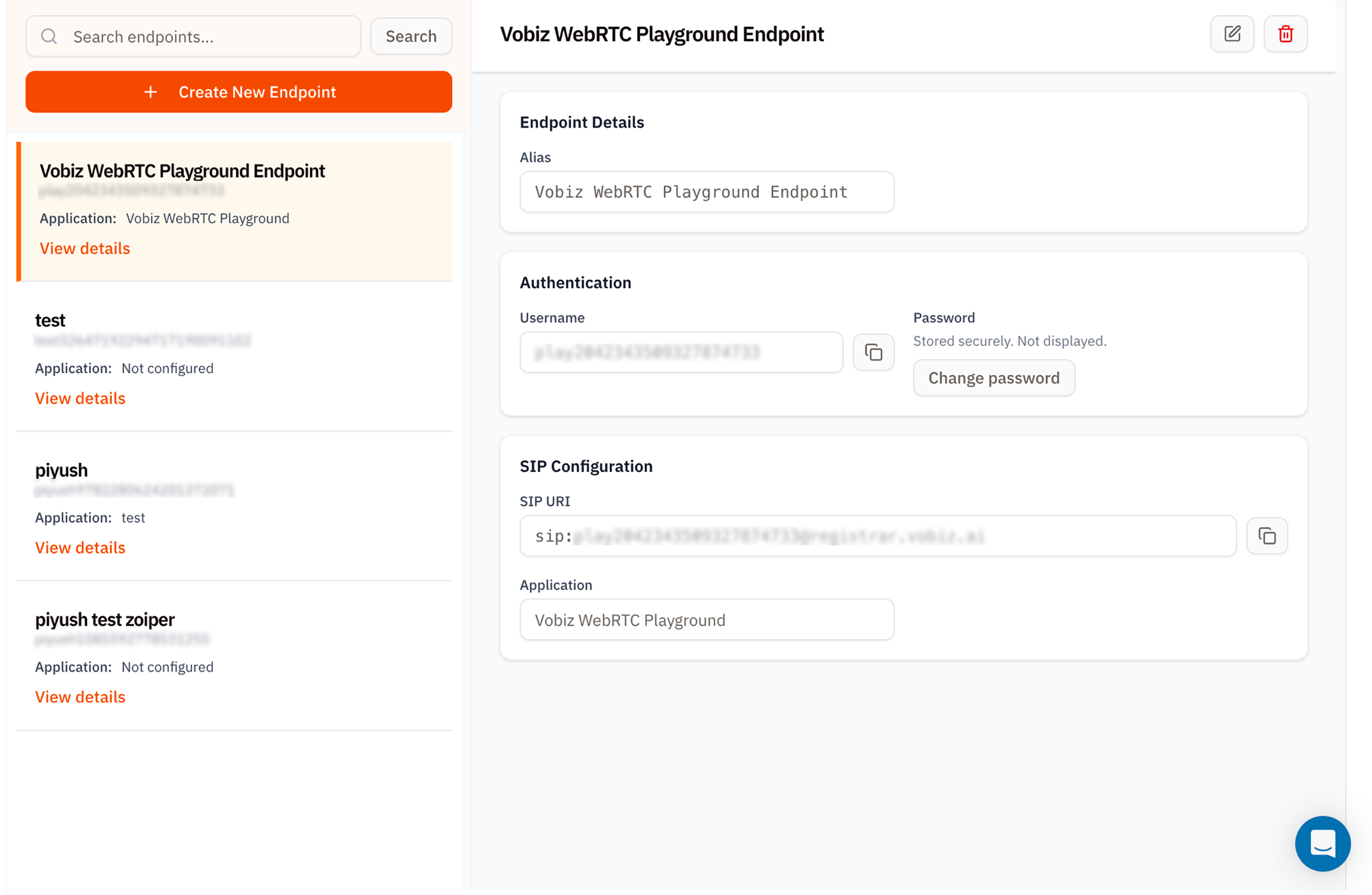
- Left - a searchable list. Each card shows the alias, username, and the application the endpoint is wired to.
- Right - endpoint details for the row you’ve clicked.
What the endpoint details show
| Section | Field | Purpose |
|---|---|---|
| Endpoint Details | Alias | Friendly name shown in lists. Editable. |
| Authentication | Username | Auto‑generated identifier (e.g. play2042343509327874733). This is what you type in your softphone’s Username field. |
| Password | Stored hashed - Vobiz never displays it after creation. Use Change password to set a new one. | |
| SIP Configuration | SIP URI | The full SIP address (e.g. sip:play2042343509327874733@registrar.vobiz.ai). Use it as the Domain in any SIP client. |
| Application | The XML application routed to this endpoint. Calls placed to the endpoint hit this app’s Answer URL. |
Create a SIP endpoint
Click + Create New Endpoint to open the form.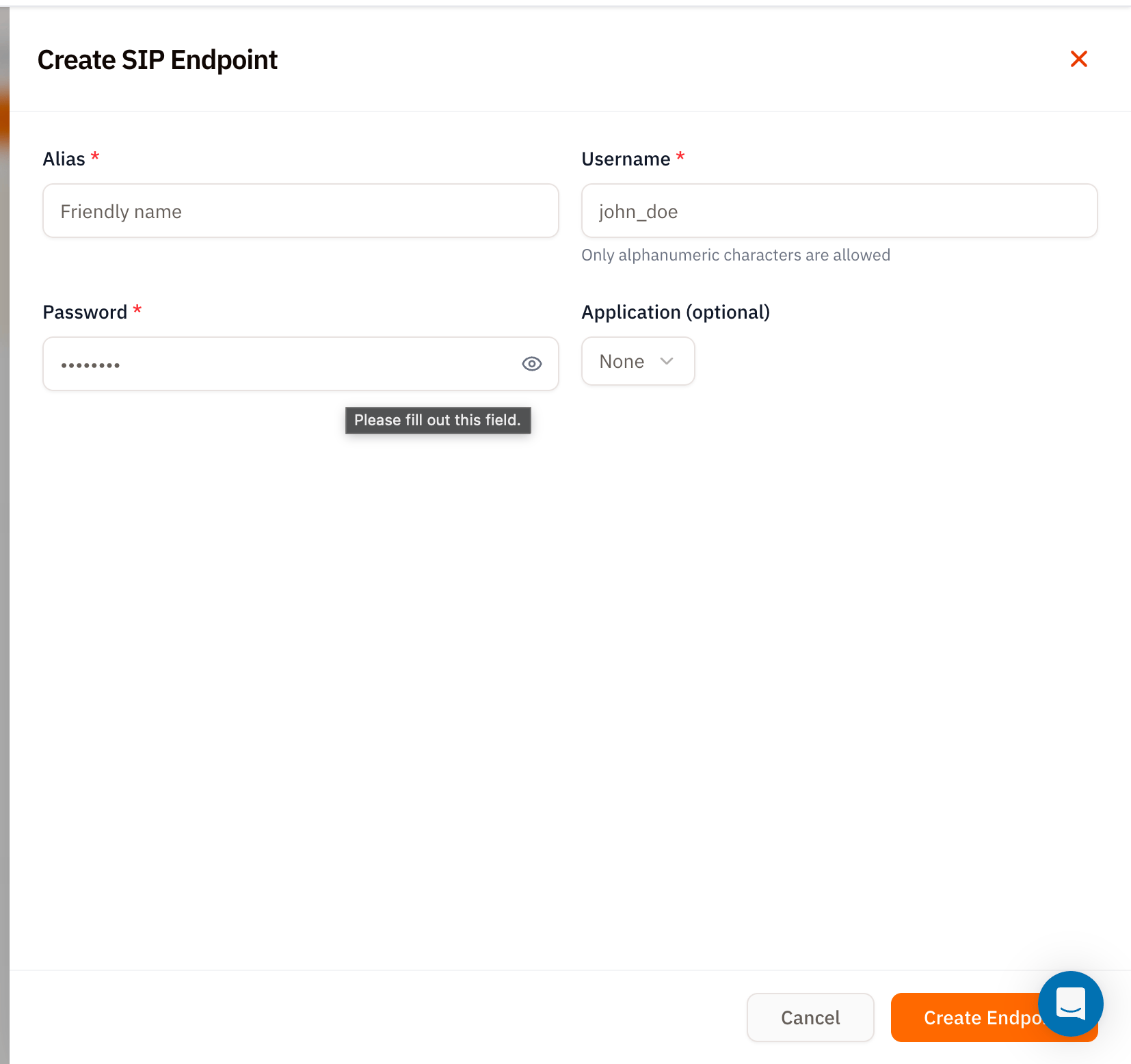
| Field | Required | Notes |
|---|---|---|
| Alias | ✅ | A friendly name like “Agent 1 Zoiper” or “Sales WebRTC”. |
| Username | ✅ | Alphanumeric only - no spaces, dots, or symbols. This becomes the SIP username. |
| Password | ✅ | Set a strong password. Vobiz won’t show it again after save - store it in your password manager now. |
| Application (optional) | – | Pick the XML application calls to this endpoint should hit. Leave as None if you only need outbound from this endpoint. |
Using endpoints with the WebRTC demo
Vobiz ships a hosted WebRTC playground at rtc-demo.vobiz.ai - a browser softphone you can sign into with any endpoint’s username and password. It’s the fastest way to test a new XML app without installing software.Open the demo
Navigate to rtc-demo.vobiz.ai, enter the endpoint username and password, and click Register.
The Vobiz WebRTC Playground endpoint that ships with every new account is wired to the
Vobiz WebRTC Playground XML application by default - you can use it immediately without creating your own.Edit, change password, delete
Top‑right of the details panel:- ✏ Edit - change alias or the assigned application.
- Change password (inside the Authentication card) - rotate credentials. The old password is immediately invalidated; update your softphone before the next call.
- 🗑 Delete - permanently remove the endpoint. Any registered client will drop the session.
Tips
- One endpoint per agent. Don’t share a username/password across team members - Vobiz registrar only allows one active registration per endpoint.
- Rotate passwords on offboarding. Deleting the endpoint is cleaner, but changing the password is faster if the same alias will be reassigned.
- Use the WebRTC demo for QA. Calling into an endpoint from
rtc-demo.vobiz.aiis faster than spinning up Zoiper for one‑off tests.
What’s next
Browser softphone setup
Wire endpoints into your own WebRTC frontend.
Applications
Point this endpoint at an XML app that responds with real call flows.