> ## Documentation Index
> Fetch the complete documentation index at: https://docs.vobiz.ai/llms.txt
> Use this file to discover all available pages before exploring further.
# Call Recordings - Playback, Transcripts & AI Insights
> Browse, play, and download call recordings (WAV / MP3) in the Vobiz Console. AI-powered transcription, sentiment analysis, and storage lifecycle details (30-day retention).
The **Recordings** page lists every recorded call on your account - playable WAV or MP3 audio plus AI‑powered transcripts and sentiment scoring for the last 30 days.
```text URL theme={null}
https://console.vobiz.ai/app/voice/recordings
```
## The Recordings page
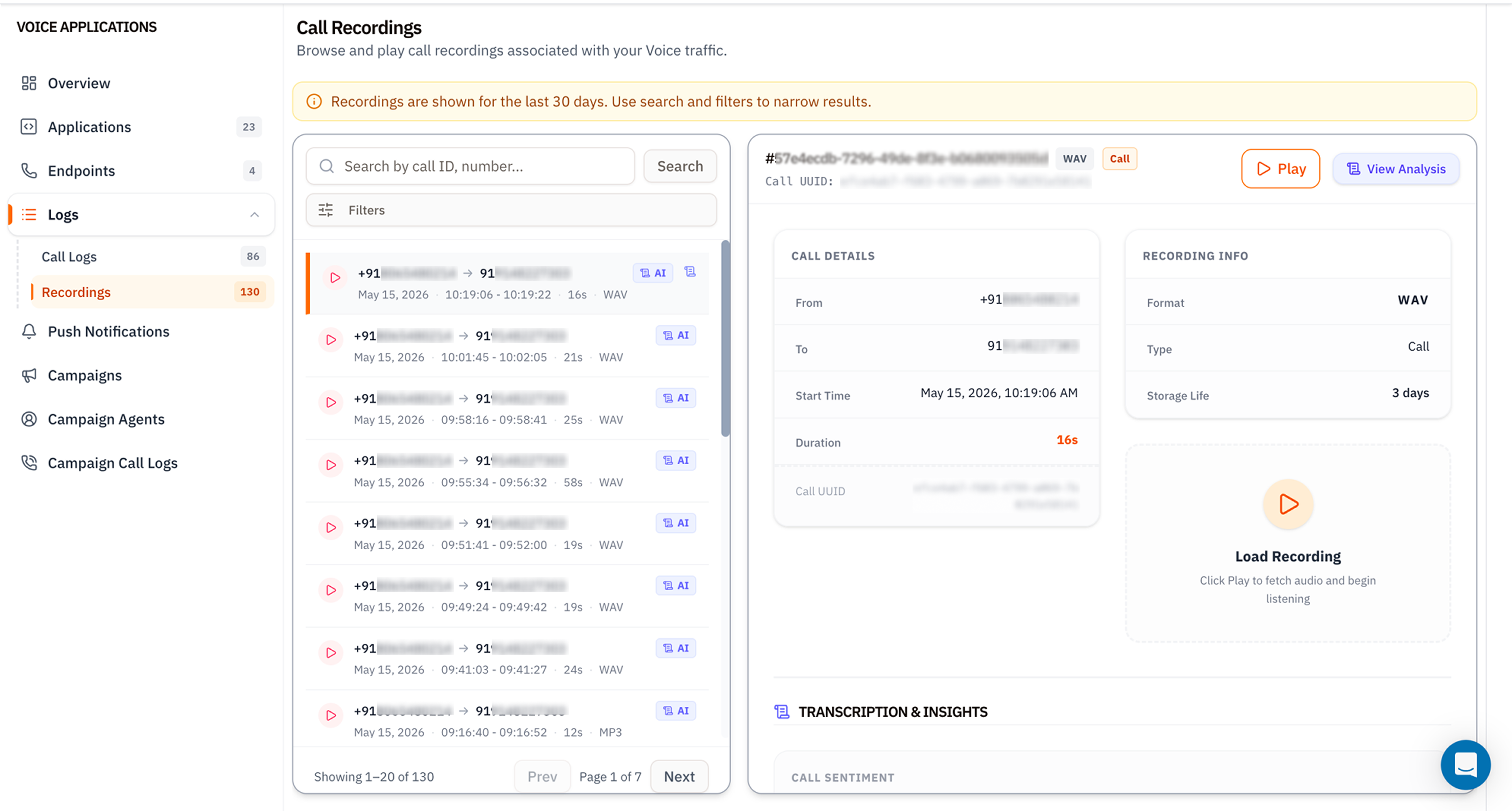 A banner at the top reminds you of the **30‑day retention window** - older recordings are deleted automatically. If you need longer retention, [export historical recordings](/recording/export-historical-recordings) before they age out.
## The recordings list
The left column shows up to 20 recordings per page. Each row has:
* **▶ Play** icon - click to load and play inline.
* **From → To** numbers.
* **Date and timestamps** (`HH:MM:SS - HH:MM:SS`) plus duration.
* **Format badge** - `WAV` (uncompressed PCM) or `MP3` (lossy, smaller).
* **AI badge** - indicates the recording has been transcribed and analysed.
Search by call ID or number, or open **Filters** to narrow by date, direction, or duration.
## Recording details panel
The right side shows everything Vobiz knows about the selected recording.
### Top bar
* **Recording ID** (e.g. `#57e4ecdb-7296-49de-8f3e-b0680093505d`).
* **Format badge** (`WAV` / `MP3`).
* **Type badge** (`Call`, `Conference`, `Stream`).
* **▶ Play** - fetches the audio and starts playback.
* **View Analysis** - opens the full AI breakdown (transcript, sentiment, keywords).
### Call Details card
| Field | Meaning |
| -------------- | ----------------------------------------------------------------------------------- |
| **From** | Caller number with country flag. |
| **To** | Destination number. |
| **Start Time** | UTC timestamp converted to your browser timezone. |
| **Duration** | Total recorded length. |
| **Call UUID** | Canonical Call ID - matches what you see in [Call Logs](/platform/voice/call-logs). |
### Recording Info card
| Field | Meaning |
| ---------------- | --------------------------------------------------------------------------------- |
| **Format** | `WAV` (8 kHz mono PCM by default) or `MP3` (CBR 64 kbps). |
| **Type** | `Call` for standard recordings, `Conference` for conference legs. |
| **Storage Life** | Days remaining before automatic deletion. The clock starts at recording creation. |
### Load Recording card
The **▶ Load Recording** card is the inline player. Click play, the audio fetches lazily (recordings aren't pre‑loaded to save bandwidth), and you get standard playback controls. Right‑click → *Save audio as…* to download a local copy.
### Transcription & Insights
Below the player, two AI‑generated sections appear once analysis completes (usually a few minutes after the call ends):
* **Transcription** - the full text with speaker labels.
* **Call Sentiment** - per‑speaker sentiment scoring (positive / neutral / negative) plus highlighted moments.
## Filters
Same modal as [Call Logs filters](/platform/voice/call-logs#search-and-filter) - direction, From/To numbers, min/max duration, hangup cause.
## Tips
* **Export critical recordings within 30 days.** The retention window is hard - there's no recovery after deletion.
* **MP3 saves bandwidth.** For long compliance retention, MP3 is \~10× smaller than WAV with negligible quality loss for voice.
* **Quote the Call UUID** in support tickets, not the recording ID - it ties back to the full CDR and SIP trace.
## What's next
Programmatic access - list, download, delete, bulk export.
Bulk‑export recordings to long‑term storage before retention kicks in.
A banner at the top reminds you of the **30‑day retention window** - older recordings are deleted automatically. If you need longer retention, [export historical recordings](/recording/export-historical-recordings) before they age out.
## The recordings list
The left column shows up to 20 recordings per page. Each row has:
* **▶ Play** icon - click to load and play inline.
* **From → To** numbers.
* **Date and timestamps** (`HH:MM:SS - HH:MM:SS`) plus duration.
* **Format badge** - `WAV` (uncompressed PCM) or `MP3` (lossy, smaller).
* **AI badge** - indicates the recording has been transcribed and analysed.
Search by call ID or number, or open **Filters** to narrow by date, direction, or duration.
## Recording details panel
The right side shows everything Vobiz knows about the selected recording.
### Top bar
* **Recording ID** (e.g. `#57e4ecdb-7296-49de-8f3e-b0680093505d`).
* **Format badge** (`WAV` / `MP3`).
* **Type badge** (`Call`, `Conference`, `Stream`).
* **▶ Play** - fetches the audio and starts playback.
* **View Analysis** - opens the full AI breakdown (transcript, sentiment, keywords).
### Call Details card
| Field | Meaning |
| -------------- | ----------------------------------------------------------------------------------- |
| **From** | Caller number with country flag. |
| **To** | Destination number. |
| **Start Time** | UTC timestamp converted to your browser timezone. |
| **Duration** | Total recorded length. |
| **Call UUID** | Canonical Call ID - matches what you see in [Call Logs](/platform/voice/call-logs). |
### Recording Info card
| Field | Meaning |
| ---------------- | --------------------------------------------------------------------------------- |
| **Format** | `WAV` (8 kHz mono PCM by default) or `MP3` (CBR 64 kbps). |
| **Type** | `Call` for standard recordings, `Conference` for conference legs. |
| **Storage Life** | Days remaining before automatic deletion. The clock starts at recording creation. |
### Load Recording card
The **▶ Load Recording** card is the inline player. Click play, the audio fetches lazily (recordings aren't pre‑loaded to save bandwidth), and you get standard playback controls. Right‑click → *Save audio as…* to download a local copy.
### Transcription & Insights
Below the player, two AI‑generated sections appear once analysis completes (usually a few minutes after the call ends):
* **Transcription** - the full text with speaker labels.
* **Call Sentiment** - per‑speaker sentiment scoring (positive / neutral / negative) plus highlighted moments.
## Filters
Same modal as [Call Logs filters](/platform/voice/call-logs#search-and-filter) - direction, From/To numbers, min/max duration, hangup cause.
## Tips
* **Export critical recordings within 30 days.** The retention window is hard - there's no recovery after deletion.
* **MP3 saves bandwidth.** For long compliance retention, MP3 is \~10× smaller than WAV with negligible quality loss for voice.
* **Quote the Call UUID** in support tickets, not the recording ID - it ties back to the full CDR and SIP trace.
## What's next
Programmatic access - list, download, delete, bulk export.
Bulk‑export recordings to long‑term storage before retention kicks in.