> ## Documentation Index
> Fetch the complete documentation index at: https://docs.vobiz.ai/llms.txt
> Use this file to discover all available pages before exploring further.
# SIP Endpoints - Softphone & WebRTC Logins
> Create SIP endpoints in the Vobiz Console for softphones, Zoiper, and the WebRTC demo (rtc-demo.vobiz.ai). Walkthrough of the endpoint list, SIP URI, credentials, and the Create SIP Endpoint form.
A **SIP endpoint** is a username/password Vobiz uses to register a softphone, browser, or WebRTC client. Once registered, the endpoint can make and receive calls just like a Vobiz phone number - handy for click‑to‑call from a browser, agent‑side softphones, or testing without buying a DID.
```text URL theme={null}
https://console.vobiz.ai/app/voice/endpoints
```
## The endpoints list
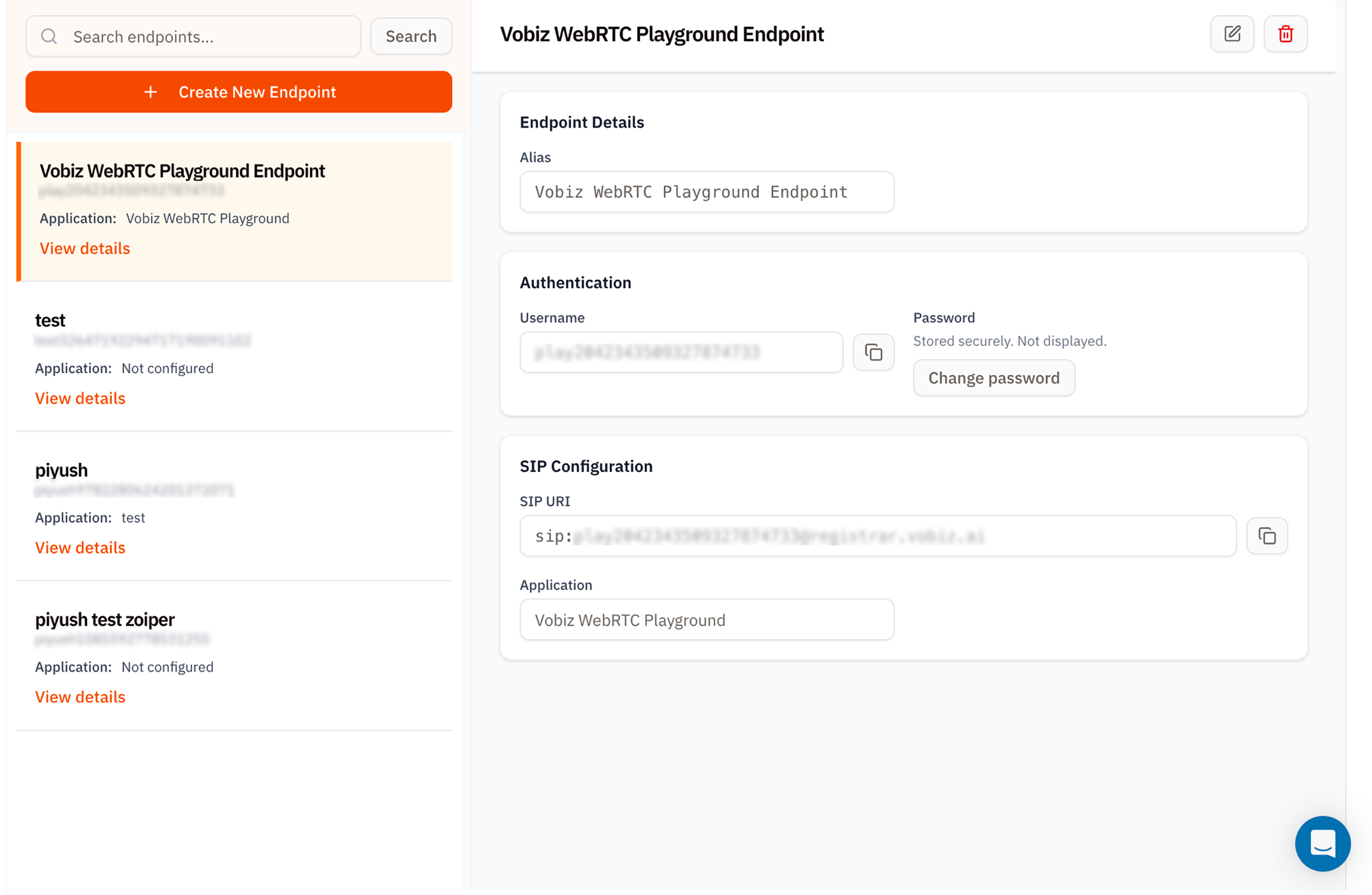 Two columns:
* **Left** - a searchable list. Each card shows the **alias**, **username**, and the **application** the endpoint is wired to.
* **Right** - endpoint details for the row you've clicked.
## What the endpoint details show
| Section | Field | Purpose |
| --------------------- | --------------- | -------------------------------------------------------------------------------------------------------------------------------------- |
| **Endpoint Details** | **Alias** | Friendly name shown in lists. Editable. |
| **Authentication** | **Username** | Auto‑generated identifier (e.g. `play2042343509327874733`). This is what you type in your softphone's *Username* field. |
| | **Password** | Stored hashed - Vobiz never displays it after creation. Use **Change password** to set a new one. |
| **SIP Configuration** | **SIP URI** | The full SIP address (e.g. `sip:play2042343509327874733@registrar.vobiz.ai`). Use it as the *Domain* in any SIP client. |
| | **Application** | The [XML application](/platform/voice/applications) routed to this endpoint. Calls placed *to* the endpoint hit this app's Answer URL. |
In Zoiper, set **Domain** to `registrar.vobiz.ai`, **Username** to the endpoint username, and **Password** to whatever you typed at creation. Outbound proxy not required.
## Create a SIP endpoint
Click **+ Create New Endpoint** to open the form.
Two columns:
* **Left** - a searchable list. Each card shows the **alias**, **username**, and the **application** the endpoint is wired to.
* **Right** - endpoint details for the row you've clicked.
## What the endpoint details show
| Section | Field | Purpose |
| --------------------- | --------------- | -------------------------------------------------------------------------------------------------------------------------------------- |
| **Endpoint Details** | **Alias** | Friendly name shown in lists. Editable. |
| **Authentication** | **Username** | Auto‑generated identifier (e.g. `play2042343509327874733`). This is what you type in your softphone's *Username* field. |
| | **Password** | Stored hashed - Vobiz never displays it after creation. Use **Change password** to set a new one. |
| **SIP Configuration** | **SIP URI** | The full SIP address (e.g. `sip:play2042343509327874733@registrar.vobiz.ai`). Use it as the *Domain* in any SIP client. |
| | **Application** | The [XML application](/platform/voice/applications) routed to this endpoint. Calls placed *to* the endpoint hit this app's Answer URL. |
In Zoiper, set **Domain** to `registrar.vobiz.ai`, **Username** to the endpoint username, and **Password** to whatever you typed at creation. Outbound proxy not required.
## Create a SIP endpoint
Click **+ Create New Endpoint** to open the form.
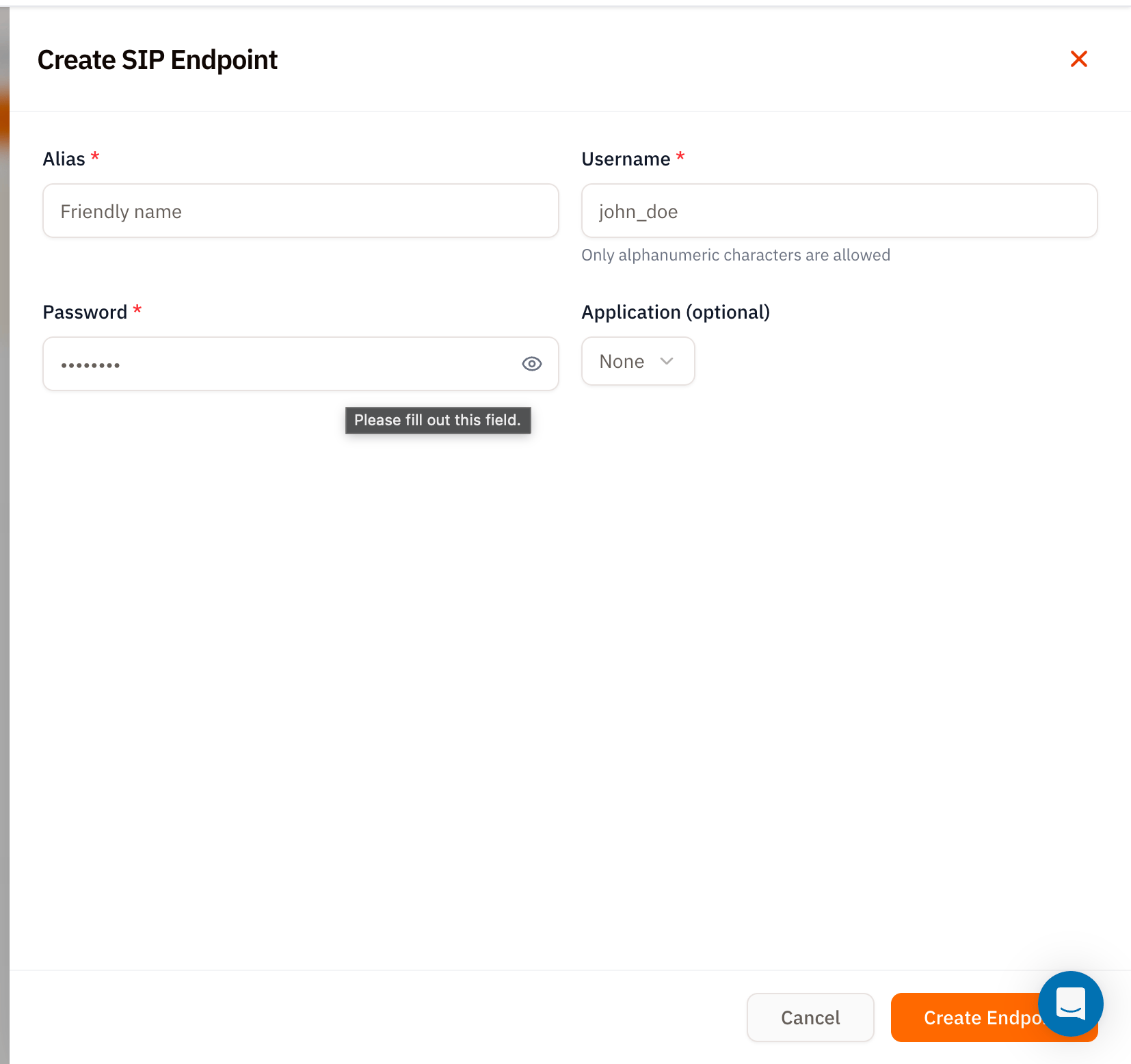 | Field | Required | Notes |
| -------------------------- | -------- | ----------------------------------------------------------------------------------------------------------------------------------------------------------- |
| **Alias** | ✅ | A friendly name like "Agent 1 Zoiper" or "Sales WebRTC". |
| **Username** | ✅ | Alphanumeric only - no spaces, dots, or symbols. This becomes the SIP `username`. |
| **Password** | ✅ | Set a strong password. Vobiz won't show it again after save - store it in your password manager *now*. |
| **Application (optional)** | – | Pick the [XML application](/platform/voice/applications) calls to this endpoint should hit. Leave as **None** if you only need outbound from this endpoint. |
Click **Create Endpoint** and Vobiz issues the SIP credentials.
## Using endpoints with the WebRTC demo
Vobiz ships a hosted WebRTC playground at **[rtc-demo.vobiz.ai](https://rtc-demo.vobiz.ai)** - a browser softphone you can sign into with any endpoint's username and password. It's the fastest way to test a new XML app without installing software.
Use the form above. Assign it to your XML application.
Navigate to [rtc-demo.vobiz.ai](https://rtc-demo.vobiz.ai), enter the endpoint **username** and **password**, and click **Register**.
Dial any number from the demo's keypad, or call *into* the endpoint from another phone to trigger the assigned application's Answer URL.
The Vobiz WebRTC Playground endpoint that ships with every new account is wired to the `Vobiz WebRTC Playground` XML application by default - you can use it immediately without creating your own.
## Edit, change password, delete
Top‑right of the details panel:
* **✏ Edit** - change alias or the assigned application.
* **Change password** (inside the Authentication card) - rotate credentials. The old password is immediately invalidated; update your softphone before the next call.
* **🗑 Delete** - permanently remove the endpoint. Any registered client will drop the session.
## Tips
* **One endpoint per agent.** Don't share a username/password across team members - Vobiz registrar only allows one active registration per endpoint.
* **Rotate passwords on offboarding.** Deleting the endpoint is cleaner, but changing the password is faster if the same alias will be reassigned.
* **Use the WebRTC demo for QA.** Calling into an endpoint from `rtc-demo.vobiz.ai` is faster than spinning up Zoiper for one‑off tests.
## What's next
Wire endpoints into your own WebRTC frontend.
Point this endpoint at an XML app that responds with real call flows.
| Field | Required | Notes |
| -------------------------- | -------- | ----------------------------------------------------------------------------------------------------------------------------------------------------------- |
| **Alias** | ✅ | A friendly name like "Agent 1 Zoiper" or "Sales WebRTC". |
| **Username** | ✅ | Alphanumeric only - no spaces, dots, or symbols. This becomes the SIP `username`. |
| **Password** | ✅ | Set a strong password. Vobiz won't show it again after save - store it in your password manager *now*. |
| **Application (optional)** | – | Pick the [XML application](/platform/voice/applications) calls to this endpoint should hit. Leave as **None** if you only need outbound from this endpoint. |
Click **Create Endpoint** and Vobiz issues the SIP credentials.
## Using endpoints with the WebRTC demo
Vobiz ships a hosted WebRTC playground at **[rtc-demo.vobiz.ai](https://rtc-demo.vobiz.ai)** - a browser softphone you can sign into with any endpoint's username and password. It's the fastest way to test a new XML app without installing software.
Use the form above. Assign it to your XML application.
Navigate to [rtc-demo.vobiz.ai](https://rtc-demo.vobiz.ai), enter the endpoint **username** and **password**, and click **Register**.
Dial any number from the demo's keypad, or call *into* the endpoint from another phone to trigger the assigned application's Answer URL.
The Vobiz WebRTC Playground endpoint that ships with every new account is wired to the `Vobiz WebRTC Playground` XML application by default - you can use it immediately without creating your own.
## Edit, change password, delete
Top‑right of the details panel:
* **✏ Edit** - change alias or the assigned application.
* **Change password** (inside the Authentication card) - rotate credentials. The old password is immediately invalidated; update your softphone before the next call.
* **🗑 Delete** - permanently remove the endpoint. Any registered client will drop the session.
## Tips
* **One endpoint per agent.** Don't share a username/password across team members - Vobiz registrar only allows one active registration per endpoint.
* **Rotate passwords on offboarding.** Deleting the endpoint is cleaner, but changing the password is faster if the same alias will be reassigned.
* **Use the WebRTC demo for QA.** Calling into an endpoint from `rtc-demo.vobiz.ai` is faster than spinning up Zoiper for one‑off tests.
## What's next
Wire endpoints into your own WebRTC frontend.
Point this endpoint at an XML app that responds with real call flows.