> ## Documentation Index
> Fetch the complete documentation index at: https://docs.vobiz.ai/llms.txt
> Use this file to discover all available pages before exploring further.
# Voice Call Logs - Per-Call Records & Quality Metrics
> Browse every voice call in the Vobiz Console - MOS scores, call timeline, hangup cause, SIP details, and CSV export. Filter by direction, caller/callee number, duration, and hangup cause.
The **Voice Call Logs** page is your audit trail - every call your account placed or received, with timing, audio quality, hangup cause, and a full SIP timeline.
```text URL theme={null}
https://console.vobiz.ai/app/voice/logs
```
## The Call Logs page
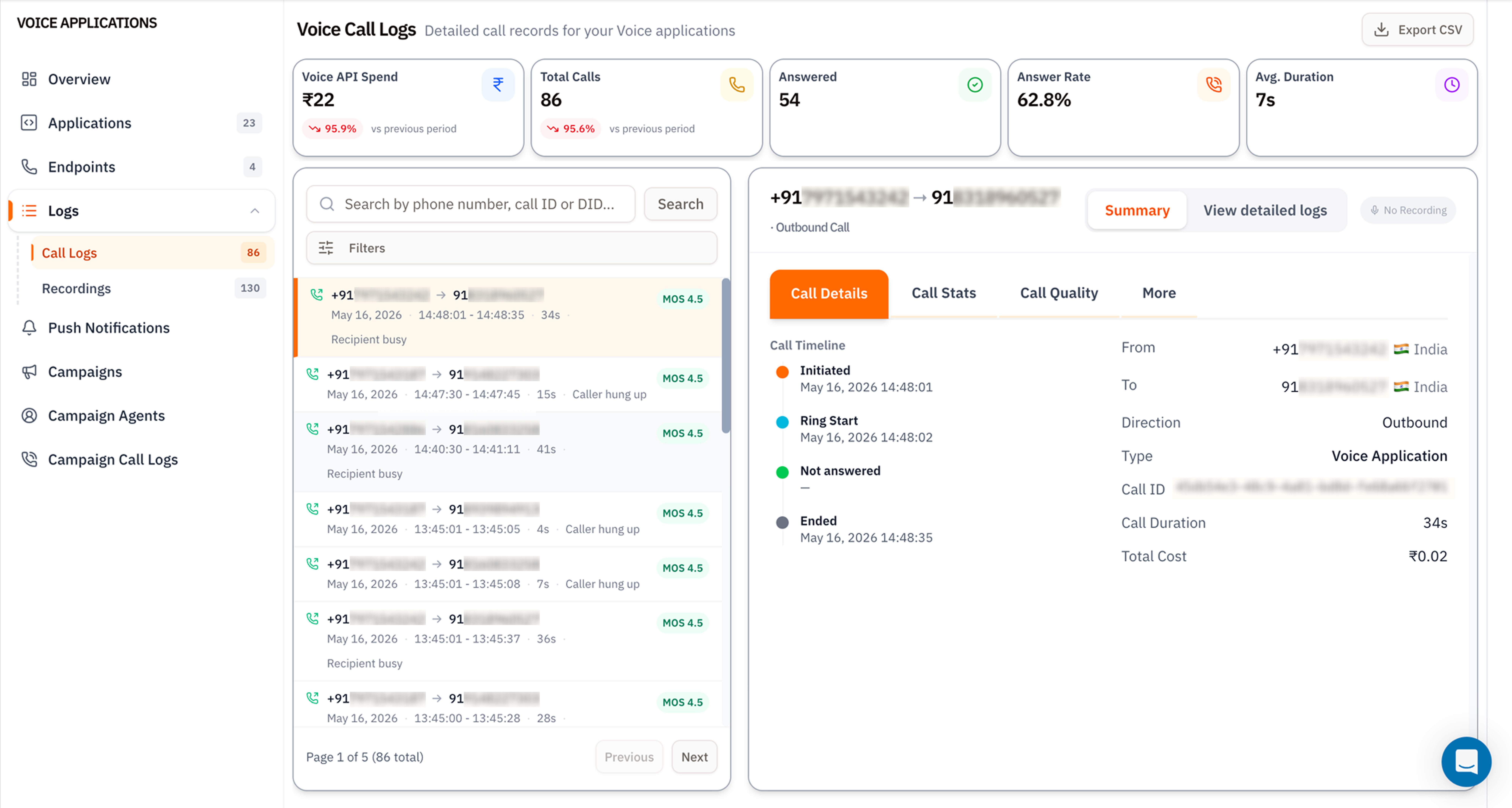 The page is laid out top‑to‑bottom in three bands.
### 1. KPI tiles
| Tile | What it measures |
| ------------------- | ------------------------------------------------- |
| **Voice API Spend** | Total INR spent on the selected date range. |
| **Total Calls** | Every attempt - answered, busy, failed, rejected. |
| **Answered** | The subset that connected (callee picked up). |
| **Answer Rate** | `Answered / Total Calls`. |
| **Avg. Duration** | Mean talk time across answered calls. |
Trend pills compare against the previous window - see [Dashboard](/platform/dashboard#kpi-tiles) for how the comparison works.
### 2. Call list
The left column lists every call in the date range. Each row shows:
* **From → To** numbers (with direction icon).
* **Date and timestamps** (`HH:MM:SS - HH:MM:SS`) plus duration.
* **Hangup cause** badge - *Caller hung up*, *Recipient busy*, *Not answered*, etc.
* **MOS score** - Mean Opinion Score (1.0–5.0). 4.0+ is good, 3.5–4.0 acceptable, below 3.5 indicates audible quality issues.
Click any row to load its details on the right.
### 3. Call Details panel
The right side has four tabs:
* **Call Details** - Call Timeline (Initiated → Ring Start → Answered/Not answered → Ended), From/To with country flag, Direction, Type (Voice Application, SIP, API), Call ID (the canonical handle to quote in support tickets), Call Duration, and Total Cost.
* **Call Stats** - packet loss, jitter, codec, network conditions.
* **Call Quality** - MOS breakdown by leg (inbound vs outbound).
* **More** - raw SIP headers, full hangup cause code, redirect history.
Three links above the tabs:
* **Summary / View detailed logs** toggle - flip between the timeline view and a full SIP message log.
* **No Recording** badge - turns into a **▶ Play** button if the call was recorded ([Recordings](/platform/voice/recordings)).
## Search and filter
The two controls above the call list:
* **Search by phone number, call ID or DID** - substring match across `from`, `to`, the Call ID UUID, and the DID it routed through.
* **Filters** - opens the side panel for structured filtering.
The page is laid out top‑to‑bottom in three bands.
### 1. KPI tiles
| Tile | What it measures |
| ------------------- | ------------------------------------------------- |
| **Voice API Spend** | Total INR spent on the selected date range. |
| **Total Calls** | Every attempt - answered, busy, failed, rejected. |
| **Answered** | The subset that connected (callee picked up). |
| **Answer Rate** | `Answered / Total Calls`. |
| **Avg. Duration** | Mean talk time across answered calls. |
Trend pills compare against the previous window - see [Dashboard](/platform/dashboard#kpi-tiles) for how the comparison works.
### 2. Call list
The left column lists every call in the date range. Each row shows:
* **From → To** numbers (with direction icon).
* **Date and timestamps** (`HH:MM:SS - HH:MM:SS`) plus duration.
* **Hangup cause** badge - *Caller hung up*, *Recipient busy*, *Not answered*, etc.
* **MOS score** - Mean Opinion Score (1.0–5.0). 4.0+ is good, 3.5–4.0 acceptable, below 3.5 indicates audible quality issues.
Click any row to load its details on the right.
### 3. Call Details panel
The right side has four tabs:
* **Call Details** - Call Timeline (Initiated → Ring Start → Answered/Not answered → Ended), From/To with country flag, Direction, Type (Voice Application, SIP, API), Call ID (the canonical handle to quote in support tickets), Call Duration, and Total Cost.
* **Call Stats** - packet loss, jitter, codec, network conditions.
* **Call Quality** - MOS breakdown by leg (inbound vs outbound).
* **More** - raw SIP headers, full hangup cause code, redirect history.
Three links above the tabs:
* **Summary / View detailed logs** toggle - flip between the timeline view and a full SIP message log.
* **No Recording** badge - turns into a **▶ Play** button if the call was recorded ([Recordings](/platform/voice/recordings)).
## Search and filter
The two controls above the call list:
* **Search by phone number, call ID or DID** - substring match across `from`, `to`, the Call ID UUID, and the DID it routed through.
* **Filters** - opens the side panel for structured filtering.
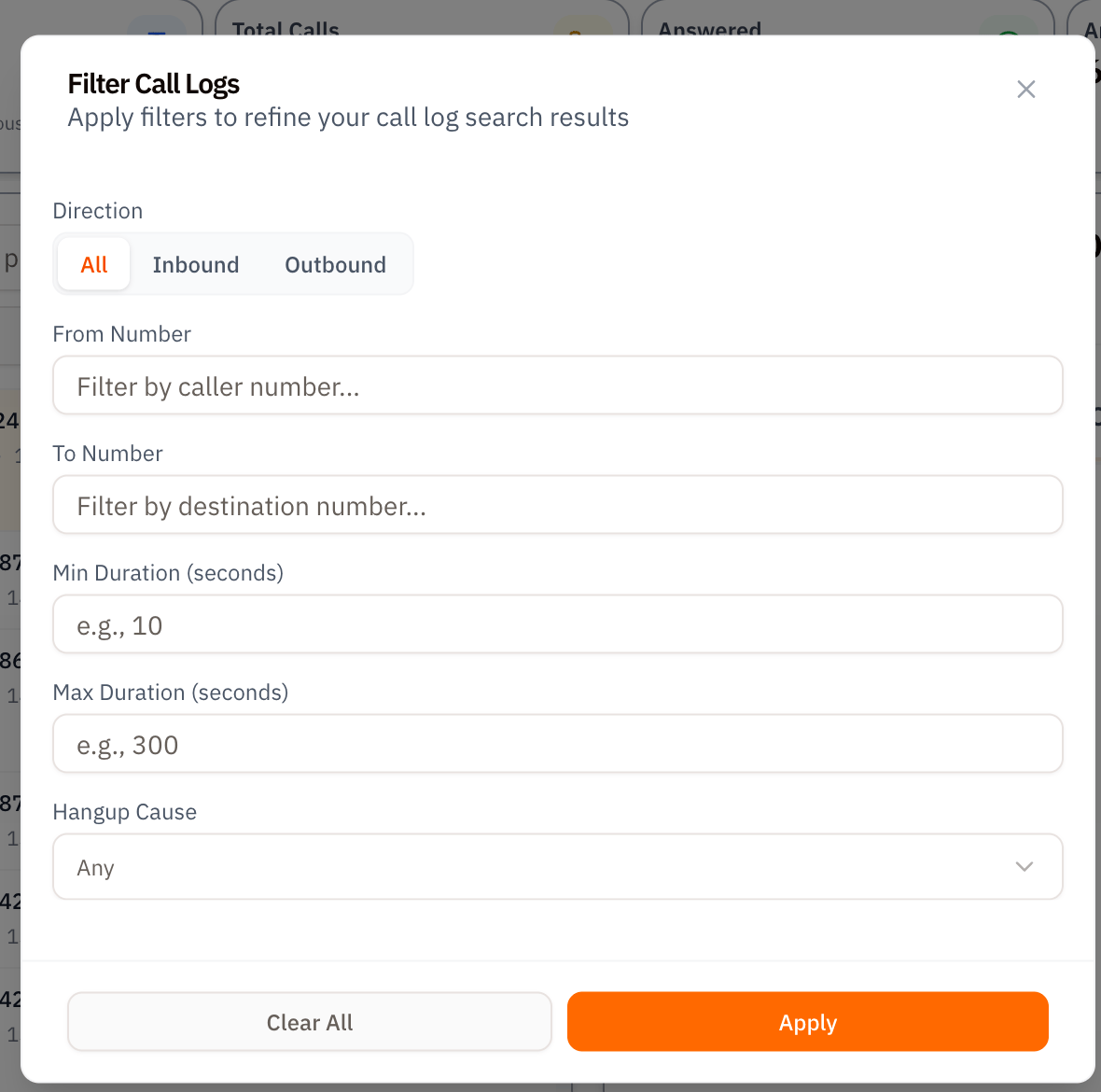 | Filter | Type | Use it for |
| -------------------------- | ------------------------ | ------------------------------------------------------------------------------ |
| **Direction** | All / Inbound / Outbound | Isolate one direction. |
| **From Number** | Substring | Find calls from a specific caller. |
| **To Number** | Substring | Find calls to a specific destination - useful for spotting hot leads. |
| **Min Duration (seconds)** | Number | Hide quick rejects: set to `10` to exclude \< 10s calls. |
| **Max Duration (seconds)** | Number | Find unusually short calls - `5` surfaces drops and immediate rejects. |
| **Hangup Cause** | Dropdown | Pick `Caller hung up`, `Recipient busy`, `Not answered`, `Network error`, etc. |
**Apply** persists the filter; **Clear All** resets to defaults.
## Export to CSV
The **Export CSV** button (top‑right of the page) downloads every call in the current filter + date range as a CSV file. Columns include all the fields visible in the details panel plus the Call ID - ready to drop into a spreadsheet or load into BigQuery for deeper analysis.
Combine **Max Duration = 5** with **Hangup Cause = Recipient busy** to surface campaigns hammering numbers that keep declining - usually a sign to drop those numbers from your dialler.
## Tips
* **Always quote the Call ID** when filing a support ticket. It's the canonical handle and lets Vobiz support trace the call across every internal system.
* **MOS \< 3.5** consistently usually means a network problem on the caller's side or codec mismatch - open **Call Stats** to confirm.
* **Page 1 of N** at the bottom - pagination is server‑side. Filters apply before pagination, so deep paging stays fast.
## What's next
Play and download the audio for calls flagged here.
Pull the same data programmatically with `X-Auth-ID` and `X-Auth-Token`.
| Filter | Type | Use it for |
| -------------------------- | ------------------------ | ------------------------------------------------------------------------------ |
| **Direction** | All / Inbound / Outbound | Isolate one direction. |
| **From Number** | Substring | Find calls from a specific caller. |
| **To Number** | Substring | Find calls to a specific destination - useful for spotting hot leads. |
| **Min Duration (seconds)** | Number | Hide quick rejects: set to `10` to exclude \< 10s calls. |
| **Max Duration (seconds)** | Number | Find unusually short calls - `5` surfaces drops and immediate rejects. |
| **Hangup Cause** | Dropdown | Pick `Caller hung up`, `Recipient busy`, `Not answered`, `Network error`, etc. |
**Apply** persists the filter; **Clear All** resets to defaults.
## Export to CSV
The **Export CSV** button (top‑right of the page) downloads every call in the current filter + date range as a CSV file. Columns include all the fields visible in the details panel plus the Call ID - ready to drop into a spreadsheet or load into BigQuery for deeper analysis.
Combine **Max Duration = 5** with **Hangup Cause = Recipient busy** to surface campaigns hammering numbers that keep declining - usually a sign to drop those numbers from your dialler.
## Tips
* **Always quote the Call ID** when filing a support ticket. It's the canonical handle and lets Vobiz support trace the call across every internal system.
* **MOS \< 3.5** consistently usually means a network problem on the caller's side or codec mismatch - open **Call Stats** to confirm.
* **Page 1 of N** at the bottom - pagination is server‑side. Filters apply before pagination, so deep paging stays fast.
## What's next
Play and download the audio for calls flagged here.
Pull the same data programmatically with `X-Auth-ID` and `X-Auth-Token`.