> ## Documentation Index
> Fetch the complete documentation index at: https://docs.vobiz.ai/llms.txt
> Use this file to discover all available pages before exploring further.
# XML Applications - Create & Manage Voice Apps
> Build XML applications in the Vobiz Console - point Answer and Hangup webhooks at your server, attach phone numbers, and serve programmable call flows. Walkthrough of the Applications list, app details, and the Create XML Application form.
A **Vobiz XML Application** ties a phone number to your server. When a call arrives, Vobiz POSTs (or GETs) to your **Answer URL**; your server responds with XML that tells Vobiz what to say, gather, dial, stream, or record. When the call ends, Vobiz POSTs the result to your **Hangup URL**.
```text URL theme={null}
https://console.vobiz.ai/app/voice/applications
```
## The Applications list
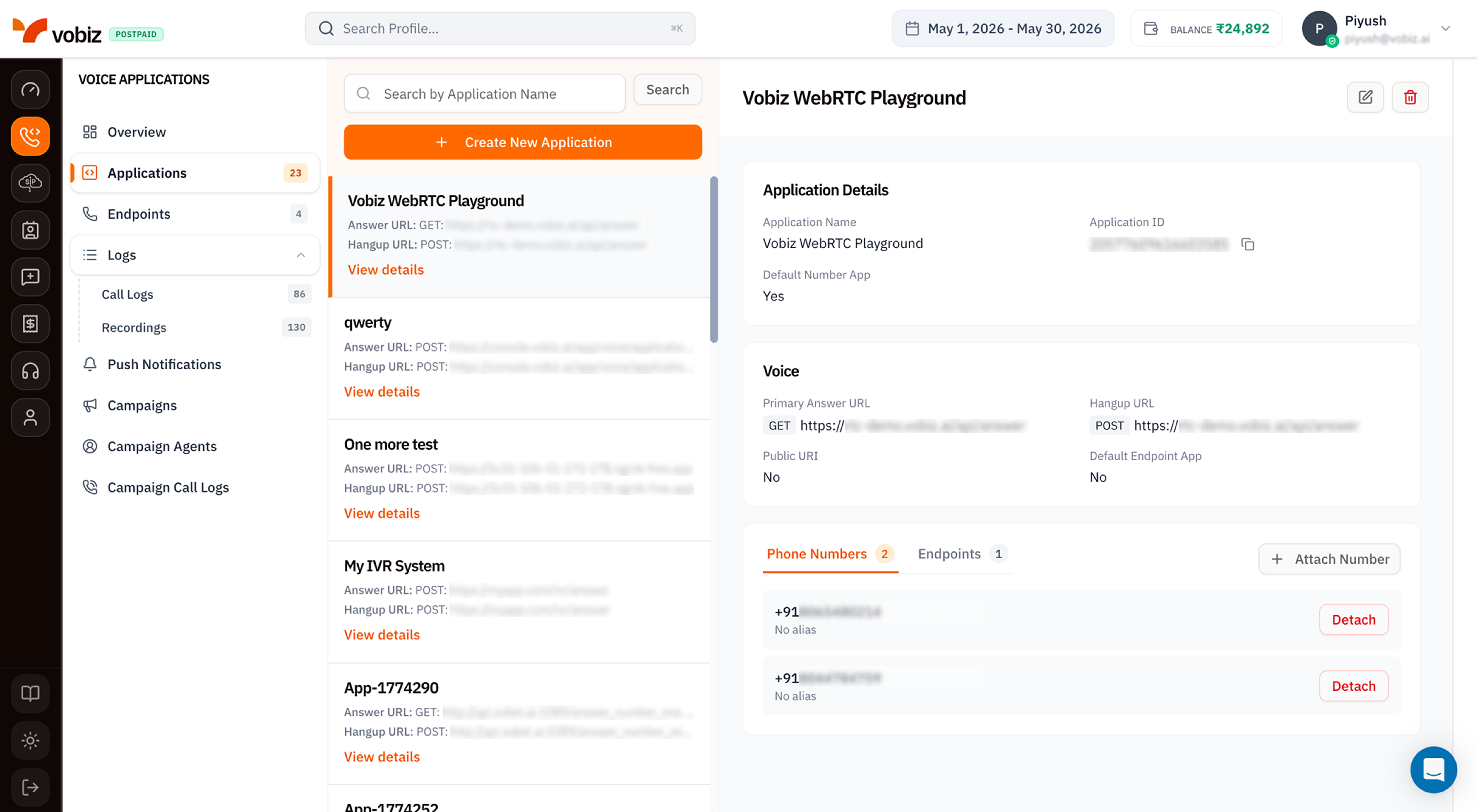 Three columns top‑to‑bottom:
1. **Search + Create** - filter the list by name, or click **+ Create New Application** to open the [creation form](#create-an-xml-application).
2. **App list** - every app on your account. Each card shows the Answer URL, Hangup URL, and a **View details** link.
3. **Application Details panel** - the right side updates when you click a card.
## What the details panel shows
| Field | Meaning |
| ------------------------ | ------------------------------------------------------------------------------------------------------------------------------------------------ |
| **Application Name** | The friendly name you typed at creation. Edit any time via the pencil icon. |
| **Application ID** | The immutable identifier - quote this when filing support tickets and use it as the `application_id` in REST API calls. |
| **Default Number App** | `Yes` means any phone number that isn't explicitly attached to another app will fall back to this one. Useful for "catch‑all" routing. |
| **Primary Answer URL** | Method + URL Vobiz calls when an inbound call needs handling, or when an outbound API call has no inline XML. |
| **Hangup URL** | Method + URL Vobiz POSTs the final call result to. |
| **Public URI** | If `Yes`, the answer URL is reachable from the public internet - Vobiz can deliver calls. Toggle to `No` to disable the app without deleting it. |
| **Default Endpoint App** | `Yes` means [SIP endpoints](/platform/voice/endpoints) without an explicit app assignment use this one. |
Below the details, two tabs:
* **Phone Numbers** - every DID attached to this application. Click **+ Attach Number** to add more, or **Detach** to release one.
* **Endpoints** - SIP endpoints (softphone logins) routed to this application.
## Create an XML Application
Click **+ Create New Application** to open the side panel.
Three columns top‑to‑bottom:
1. **Search + Create** - filter the list by name, or click **+ Create New Application** to open the [creation form](#create-an-xml-application).
2. **App list** - every app on your account. Each card shows the Answer URL, Hangup URL, and a **View details** link.
3. **Application Details panel** - the right side updates when you click a card.
## What the details panel shows
| Field | Meaning |
| ------------------------ | ------------------------------------------------------------------------------------------------------------------------------------------------ |
| **Application Name** | The friendly name you typed at creation. Edit any time via the pencil icon. |
| **Application ID** | The immutable identifier - quote this when filing support tickets and use it as the `application_id` in REST API calls. |
| **Default Number App** | `Yes` means any phone number that isn't explicitly attached to another app will fall back to this one. Useful for "catch‑all" routing. |
| **Primary Answer URL** | Method + URL Vobiz calls when an inbound call needs handling, or when an outbound API call has no inline XML. |
| **Hangup URL** | Method + URL Vobiz POSTs the final call result to. |
| **Public URI** | If `Yes`, the answer URL is reachable from the public internet - Vobiz can deliver calls. Toggle to `No` to disable the app without deleting it. |
| **Default Endpoint App** | `Yes` means [SIP endpoints](/platform/voice/endpoints) without an explicit app assignment use this one. |
Below the details, two tabs:
* **Phone Numbers** - every DID attached to this application. Click **+ Attach Number** to add more, or **Detach** to release one.
* **Endpoints** - SIP endpoints (softphone logins) routed to this application.
## Create an XML Application
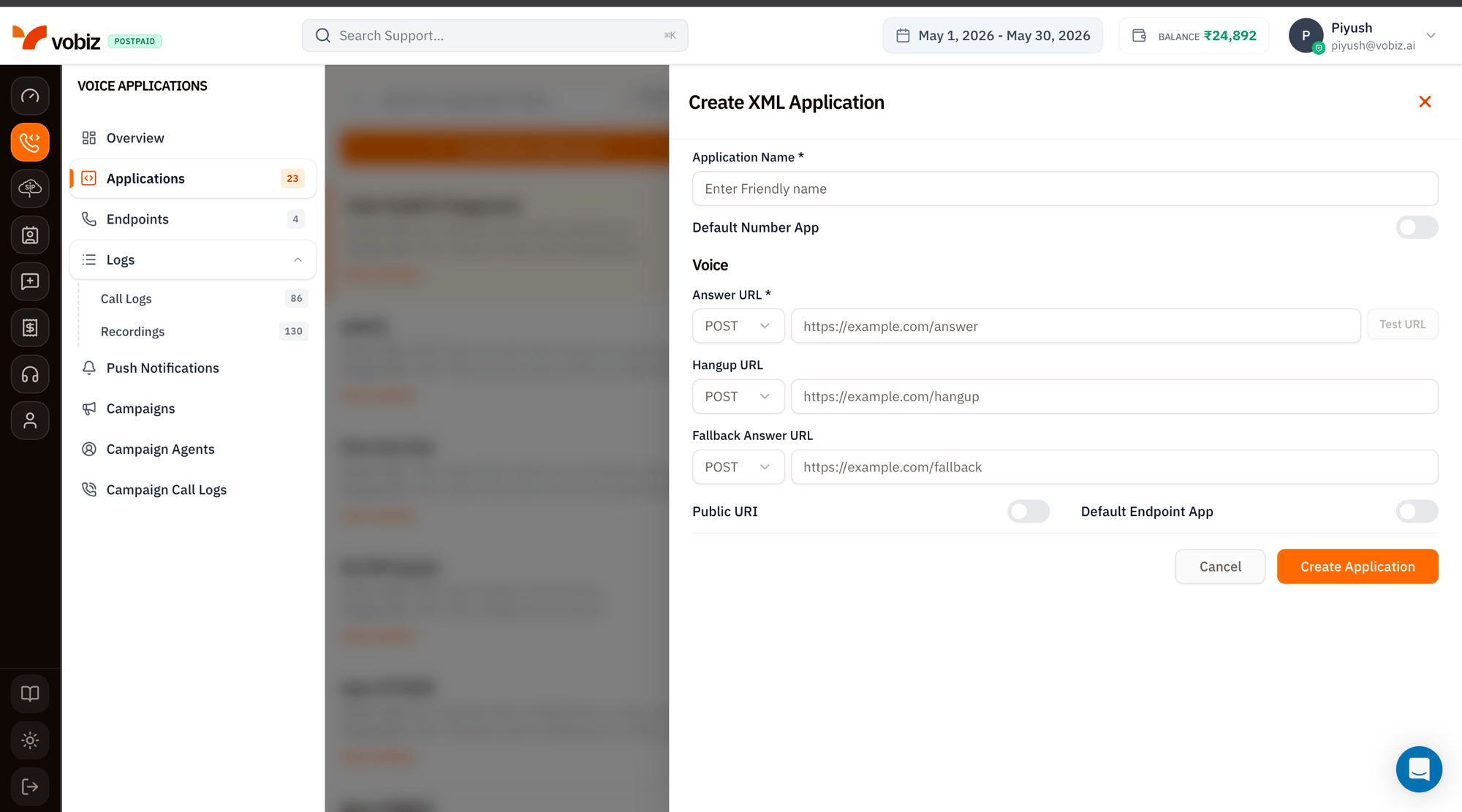
Click **+ Create New Application** to open the side panel.
 | Field | Required | Notes |
| ------------------------ | -------- | -------------------------------------------------------------------------------------------------------------------------- |
| **Application Name** | ✅ | A human label like "Inbound IVR" or "Outbound Survey". |
| **Default Number App** | – | Toggle on to make this the catch‑all for unassigned numbers. |
| **Answer URL** | ✅ | `POST` (recommended) or `GET`. Click **Test URL** to send a sample payload and verify your server responds with valid XML. |
| **Hangup URL** | – | Optional but strongly recommended - most CDR analytics depend on it. |
| **Fallback Answer URL** | – | If your primary URL returns 5xx or times out, Vobiz tries this one before failing the call. |
| **Public URI** | – | Toggle on if your server is publicly reachable. |
| **Default Endpoint App** | – | Toggle on to make this the default for [SIP endpoints](/platform/voice/endpoints). |
Use the **Test URL** button before saving. A green "200 OK" confirms reachability; a red error usually means your firewall is blocking Vobiz IPs - see [IP whitelisting](/concepts/ip-whitelisting).
Generate the XML body your webhook returns with the [interactive XML Builder](/xml-builder), or hand‑roll it using the [XML overview](/xml/overview/how-it-works).
## Attach phone numbers
The final step of the create flow (and a separate **+ Attach Number** action on existing apps) opens the **Attach Phone Numbers to Application** view.
| Field | Required | Notes |
| ------------------------ | -------- | -------------------------------------------------------------------------------------------------------------------------- |
| **Application Name** | ✅ | A human label like "Inbound IVR" or "Outbound Survey". |
| **Default Number App** | – | Toggle on to make this the catch‑all for unassigned numbers. |
| **Answer URL** | ✅ | `POST` (recommended) or `GET`. Click **Test URL** to send a sample payload and verify your server responds with valid XML. |
| **Hangup URL** | – | Optional but strongly recommended - most CDR analytics depend on it. |
| **Fallback Answer URL** | – | If your primary URL returns 5xx or times out, Vobiz tries this one before failing the call. |
| **Public URI** | – | Toggle on if your server is publicly reachable. |
| **Default Endpoint App** | – | Toggle on to make this the default for [SIP endpoints](/platform/voice/endpoints). |
Use the **Test URL** button before saving. A green "200 OK" confirms reachability; a red error usually means your firewall is blocking Vobiz IPs - see [IP whitelisting](/concepts/ip-whitelisting).
Generate the XML body your webhook returns with the [interactive XML Builder](/xml-builder), or hand‑roll it using the [XML overview](/xml/overview/how-it-works).
## Attach phone numbers
The final step of the create flow (and a separate **+ Attach Number** action on existing apps) opens the **Attach Phone Numbers to Application** view.
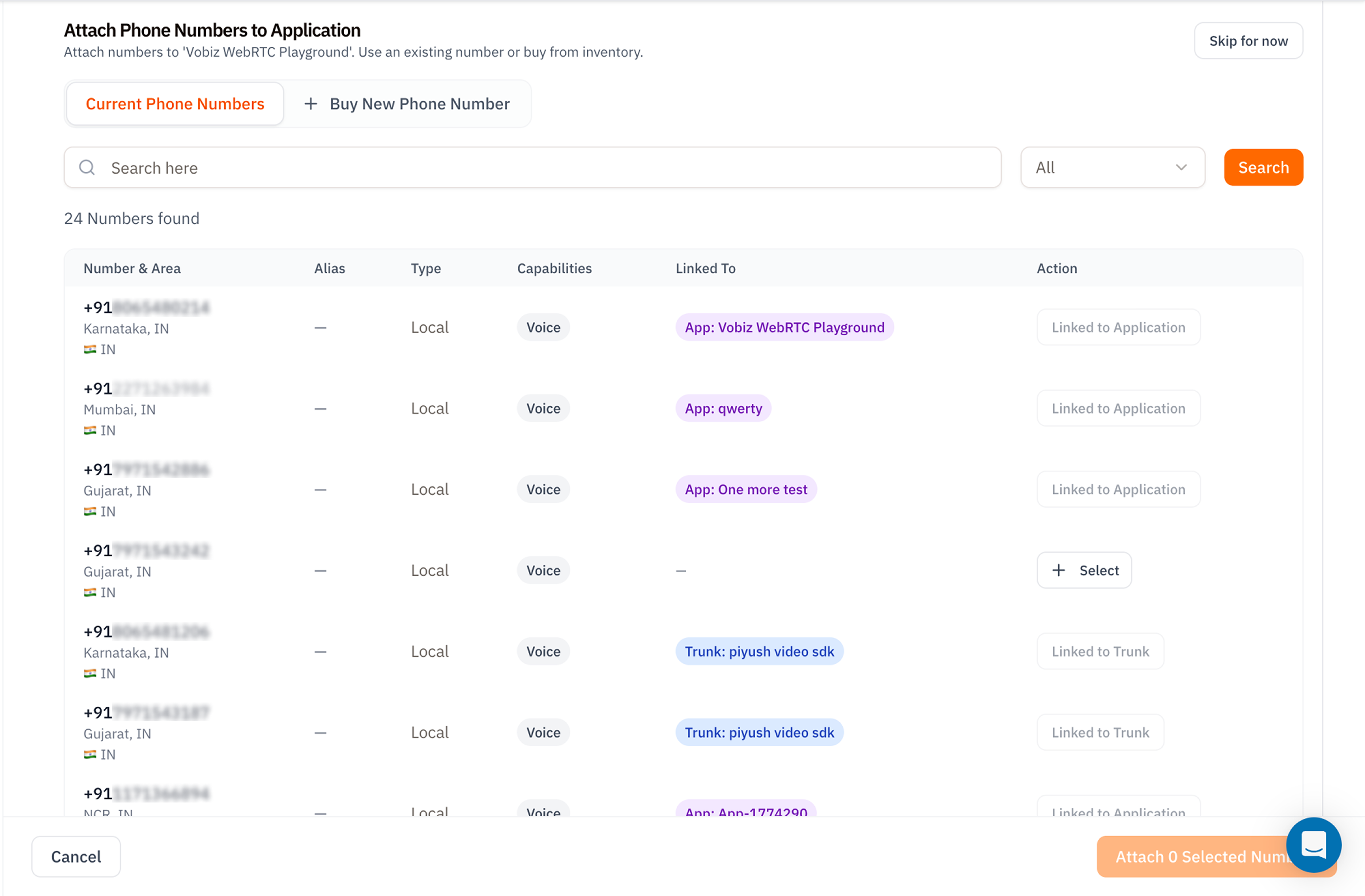 Two tabs:
* **Current Phone Numbers** - every DID on your account. The **Linked To** column shows where each number is currently routed (another App, a Trunk, or unassigned). Only numbers with no link or those linked to *this* app can be selected.
* **Buy New Phone Number** - opens the [DID purchase flow](/account-phone-number/list-inventory-numbers) without leaving this dialog.
Click **+ Select** on each row you want, then **Attach N Selected Numbers** at the bottom. You can also click **Skip for now** and attach numbers later from the details panel.
## Edit, delete, and disable
The two icons in the top‑right of the details panel:
* **✏ Edit** - opens the same form you used to create the app. URLs, name, and toggles can all change.
* **🗑 Delete** - permanently removes the app. Any attached numbers fall back to the default number app (or stop receiving calls if no default is set).
To **disable temporarily** without losing the config, edit the app and toggle **Public URI** off.
## Tips
* Keep one **Default Number App** that points to a small "this number is unconfigured" handler - newly purchased numbers will route there until you wire them up.
* Use a **Fallback Answer URL** in production. A 502 from your primary handler is rare, but when it happens you want graceful XML, not a SIP error.
* The **Application ID** is the canonical handle for API access - store it in your `.env` rather than the name.
## What's next
Sign softphones into your app for click‑to‑call testing.
Every supported XML verb with examples.
Two tabs:
* **Current Phone Numbers** - every DID on your account. The **Linked To** column shows where each number is currently routed (another App, a Trunk, or unassigned). Only numbers with no link or those linked to *this* app can be selected.
* **Buy New Phone Number** - opens the [DID purchase flow](/account-phone-number/list-inventory-numbers) without leaving this dialog.
Click **+ Select** on each row you want, then **Attach N Selected Numbers** at the bottom. You can also click **Skip for now** and attach numbers later from the details panel.
## Edit, delete, and disable
The two icons in the top‑right of the details panel:
* **✏ Edit** - opens the same form you used to create the app. URLs, name, and toggles can all change.
* **🗑 Delete** - permanently removes the app. Any attached numbers fall back to the default number app (or stop receiving calls if no default is set).
To **disable temporarily** without losing the config, edit the app and toggle **Public URI** off.
## Tips
* Keep one **Default Number App** that points to a small "this number is unconfigured" handler - newly purchased numbers will route there until you wire them up.
* Use a **Fallback Answer URL** in production. A 502 from your primary handler is rare, but when it happens you want graceful XML, not a SIP error.
* The **Application ID** is the canonical handle for API access - store it in your `.env` rather than the name.
## What's next
Sign softphones into your app for click‑to‑call testing.
Every supported XML verb with examples.