> ## Documentation Index
> Fetch the complete documentation index at: https://docs.vobiz.ai/llms.txt
> Use this file to discover all available pages before exploring further.
# Zoiper5 Integration
> How to set up an XML application, create a SIP Endpoint, configure Zoiper5, and make an outbound call using Vobiz.
# Outbound Calling with SIP Endpoints (Zoiper)
This guide explains how to set up an XML application, create a SIP Endpoint, configure a softphone (like Zoiper), and make an outbound call using Vobiz.
## Prerequisites
* A Vobiz account.
* A virtual phone number purchased in the Vobiz Console (this will be your Caller ID).
* A softphone application installed (e.g., Zoiper5).
* A webhook server capable of returning Vobiz XML (e.g., an ngrok tunnel or hosted server).
***
## Step 1: Create an XML Application
To control what happens when a call is placed from your SIP Endpoint, you need an XML Application that provides instructions to the Vobiz Media Server.
1. In the Vobiz Console, navigate to **Applications** and click **Create Application**.
2. Fill out the form:
* **Application Name:** Enter a friendly name (e.g., `Outbound Webhook App`).
* **Answer URL:** Enter your webhook URL (e.g., `https://occasionally-isoelastic-dorie.ngrok-free.dev`).
* *Note: Ensure the method matches your server (GET or POST).*
* **Hangup URL (Optional):** Enter a URL to receive hangup events.
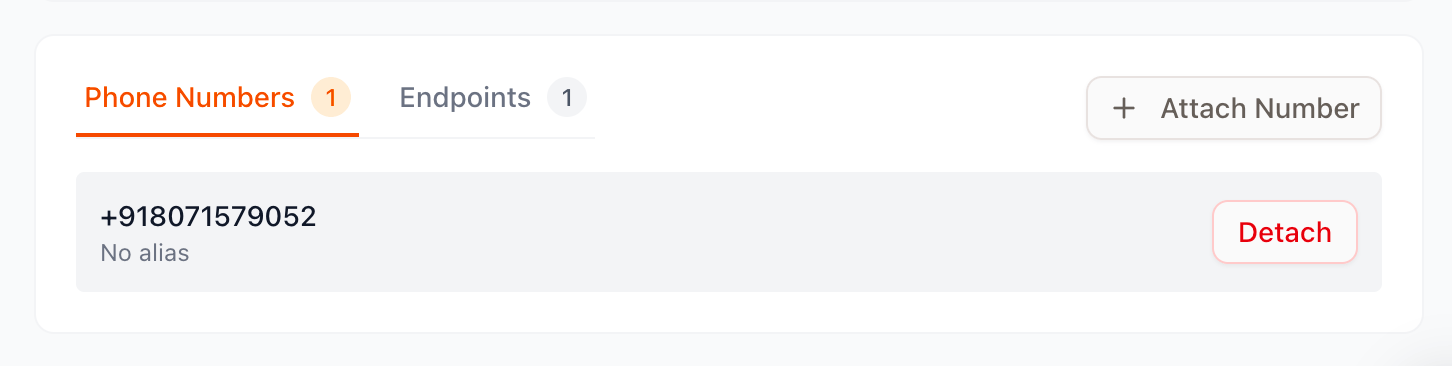
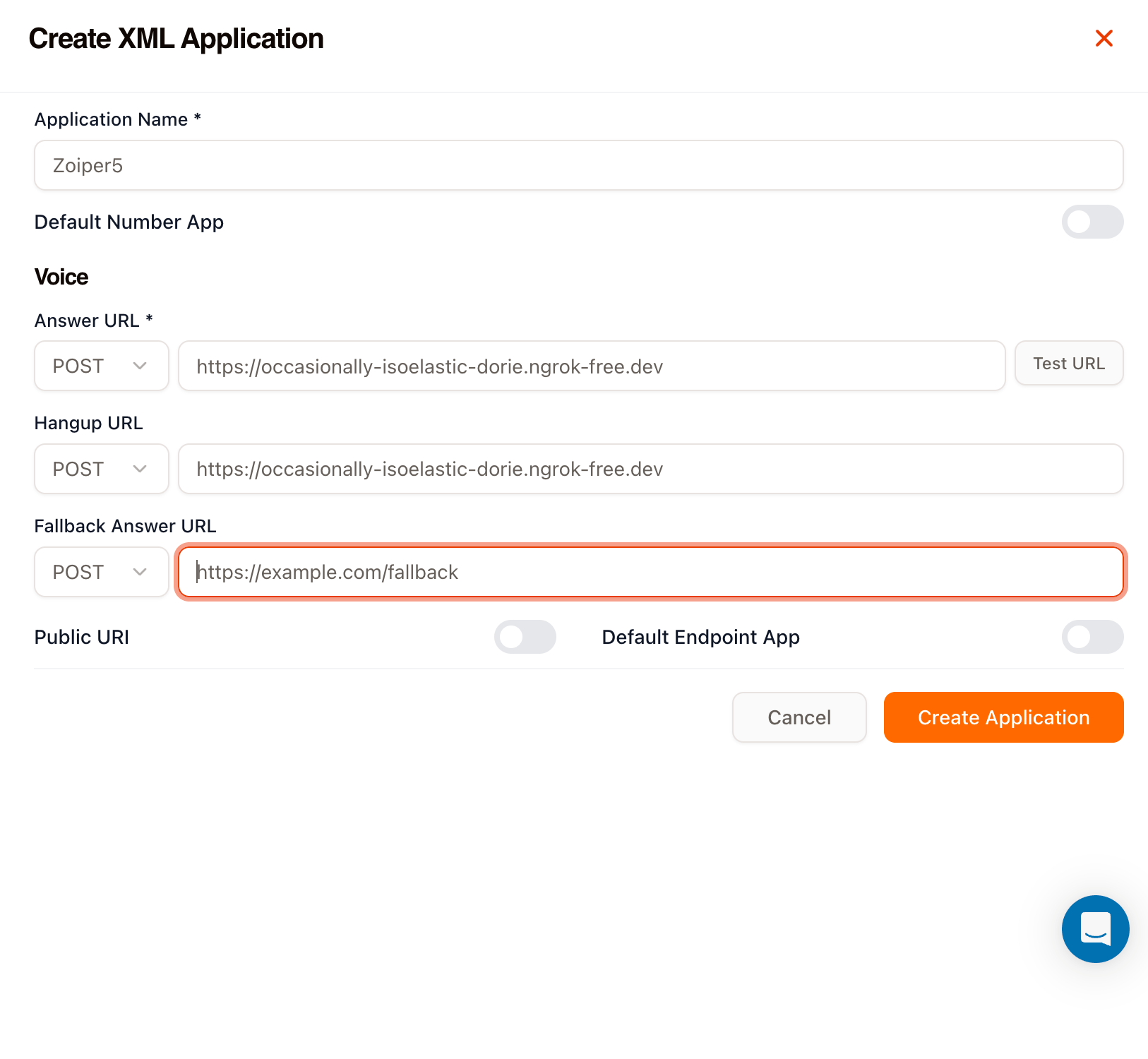 3. Click **Create Application**.
 ### Understanding the XML Structure
When you make an outbound call from a SIP Endpoint, Vobiz needs to know *where* to route the call and *what Caller ID* to display. This is done using the `` verb.
```xml theme={null}
+91XXXXXXXXXX
```
* **``**: The required root element for all Vobiz XML instructions.
* **``**: The verb used to connect the active caller (your SIP Endpoint) to a new destination.
* **`callerId` attribute**: This dictates what phone number shows up on the recipient's phone. This *must* be a phone number associated with your Vobiz account.
* **``**: The noun nested inside `` that specifies the destination phone number you are trying to reach (usually dynamically grabbed from the SIP dialpad).
### Example Webhook Payload
Here is a Python example that dynamically extracts the number you dial in Zoiper (passed by Vobiz in the `To` parameter) and responds with the correct XML structure to route the call.
```python theme={null}
from http.server import BaseHTTPRequestHandler, HTTPServer
import urllib.parse
class RequestHandler(BaseHTTPRequestHandler):
def handle_request(self):
query = urllib.parse.urlparse(self.path).query
params = urllib.parse.parse_qs(query)
# Vobiz sends the dialed number in the 'To' parameter
to_number = params.get('To', [''])[0]
# Clean up SIP URI if present
if 'sip:' in to_number:
to_number = to_number.split('@')[0].replace('sip:', '')
xml_response = f"""
{to_number}
"""
self.send_response(200)
self.send_header('Content-type', 'application/xml')
self.end_headers()
self.wfile.write(xml_response.encode('utf-8'))
def do_GET(self):
self.handle_request()
def do_POST(self):
self.handle_request()
if __name__ == '__main__':
server = HTTPServer(('0.0.0.0', 8080), RequestHandler)
server.serve_forever()
```
***
## Step 2: Create a SIP Endpoint
A SIP Endpoint acts as a bridge between your softphone and the Vobiz network.
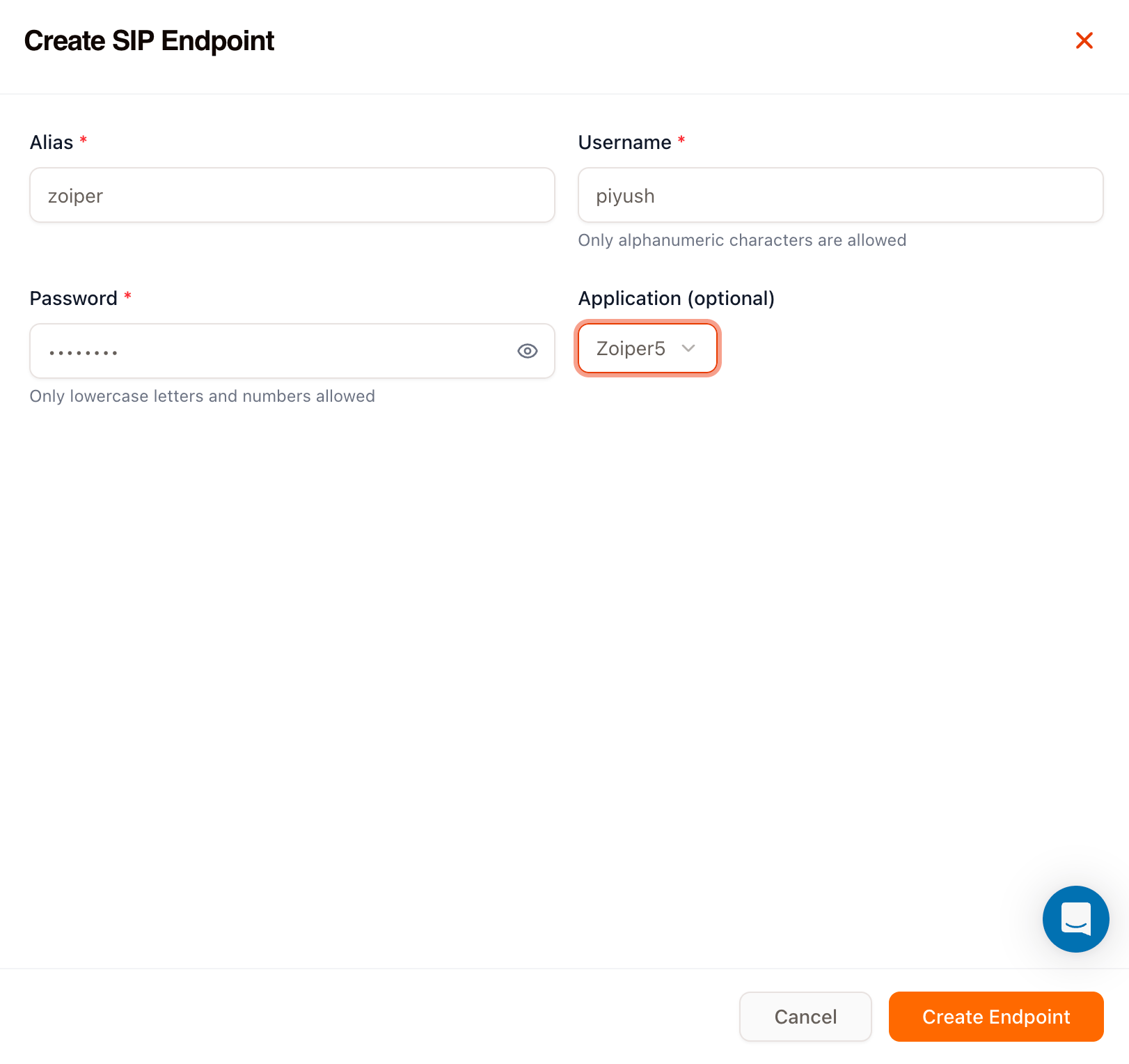
1. Navigate to **Endpoints** in the Vobiz Console and click **Create SIP Endpoint**.
2. Fill out the configuration:
* **Alias:** A friendly name for the endpoint (e.g., `My Zoiper Endpoint`).
* **Username:** A unique alphanumeric username (e.g., `johndoe123`).
* **Password:** A secure password (lowercase letters and numbers only).
* **Application:** Select the XML Application you created in Step 1 (e.g., `Outbound Webhook App`).
3. Click **Create Endpoint**.
### Understanding the XML Structure
When you make an outbound call from a SIP Endpoint, Vobiz needs to know *where* to route the call and *what Caller ID* to display. This is done using the `` verb.
```xml theme={null}
+91XXXXXXXXXX
```
* **``**: The required root element for all Vobiz XML instructions.
* **``**: The verb used to connect the active caller (your SIP Endpoint) to a new destination.
* **`callerId` attribute**: This dictates what phone number shows up on the recipient's phone. This *must* be a phone number associated with your Vobiz account.
* **``**: The noun nested inside `` that specifies the destination phone number you are trying to reach (usually dynamically grabbed from the SIP dialpad).
### Example Webhook Payload
Here is a Python example that dynamically extracts the number you dial in Zoiper (passed by Vobiz in the `To` parameter) and responds with the correct XML structure to route the call.
```python theme={null}
from http.server import BaseHTTPRequestHandler, HTTPServer
import urllib.parse
class RequestHandler(BaseHTTPRequestHandler):
def handle_request(self):
query = urllib.parse.urlparse(self.path).query
params = urllib.parse.parse_qs(query)
# Vobiz sends the dialed number in the 'To' parameter
to_number = params.get('To', [''])[0]
# Clean up SIP URI if present
if 'sip:' in to_number:
to_number = to_number.split('@')[0].replace('sip:', '')
xml_response = f"""
{to_number}
"""
self.send_response(200)
self.send_header('Content-type', 'application/xml')
self.end_headers()
self.wfile.write(xml_response.encode('utf-8'))
def do_GET(self):
self.handle_request()
def do_POST(self):
self.handle_request()
if __name__ == '__main__':
server = HTTPServer(('0.0.0.0', 8080), RequestHandler)
server.serve_forever()
```
***
## Step 2: Create a SIP Endpoint
A SIP Endpoint acts as a bridge between your softphone and the Vobiz network.
1. Navigate to **Endpoints** in the Vobiz Console and click **Create SIP Endpoint**.
2. Fill out the configuration:
* **Alias:** A friendly name for the endpoint (e.g., `My Zoiper Endpoint`).
* **Username:** A unique alphanumeric username (e.g., `johndoe123`).
* **Password:** A secure password (lowercase letters and numbers only).
* **Application:** Select the XML Application you created in Step 1 (e.g., `Outbound Webhook App`).
3. Click **Create Endpoint**.
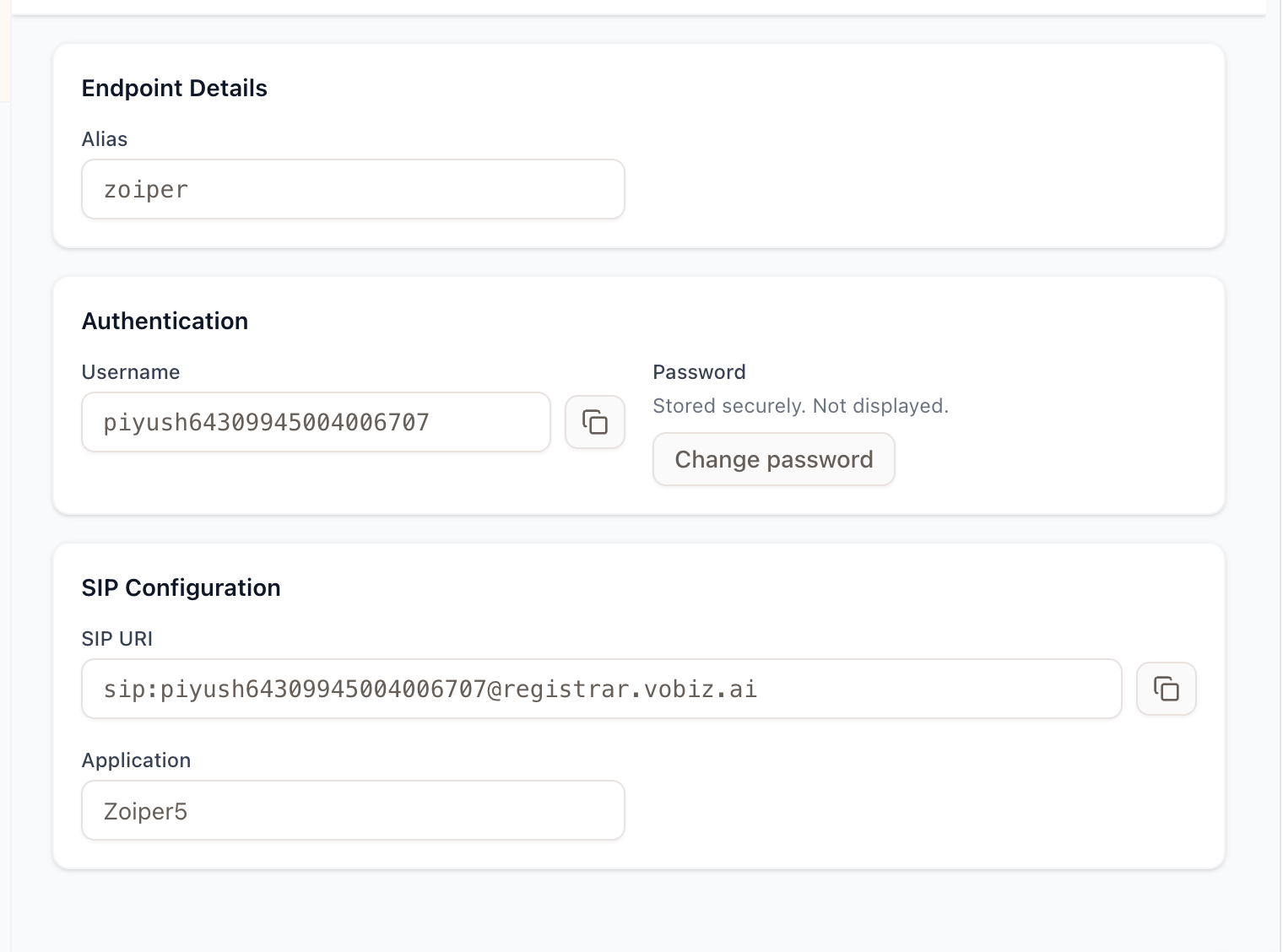 *Make note of the generated SIP URI (e.g., `johndoe123@registrar.vobiz.ai`) and password.*
***
## Step 3: Configure Zoiper (Softphone)
Now, configure your softphone to connect to the Vobiz SIP Registrar.
1. Open **Zoiper**.
2. Go to **Settings > Accounts** and click **Add Account**.
3. Select **SIP** as the account type.
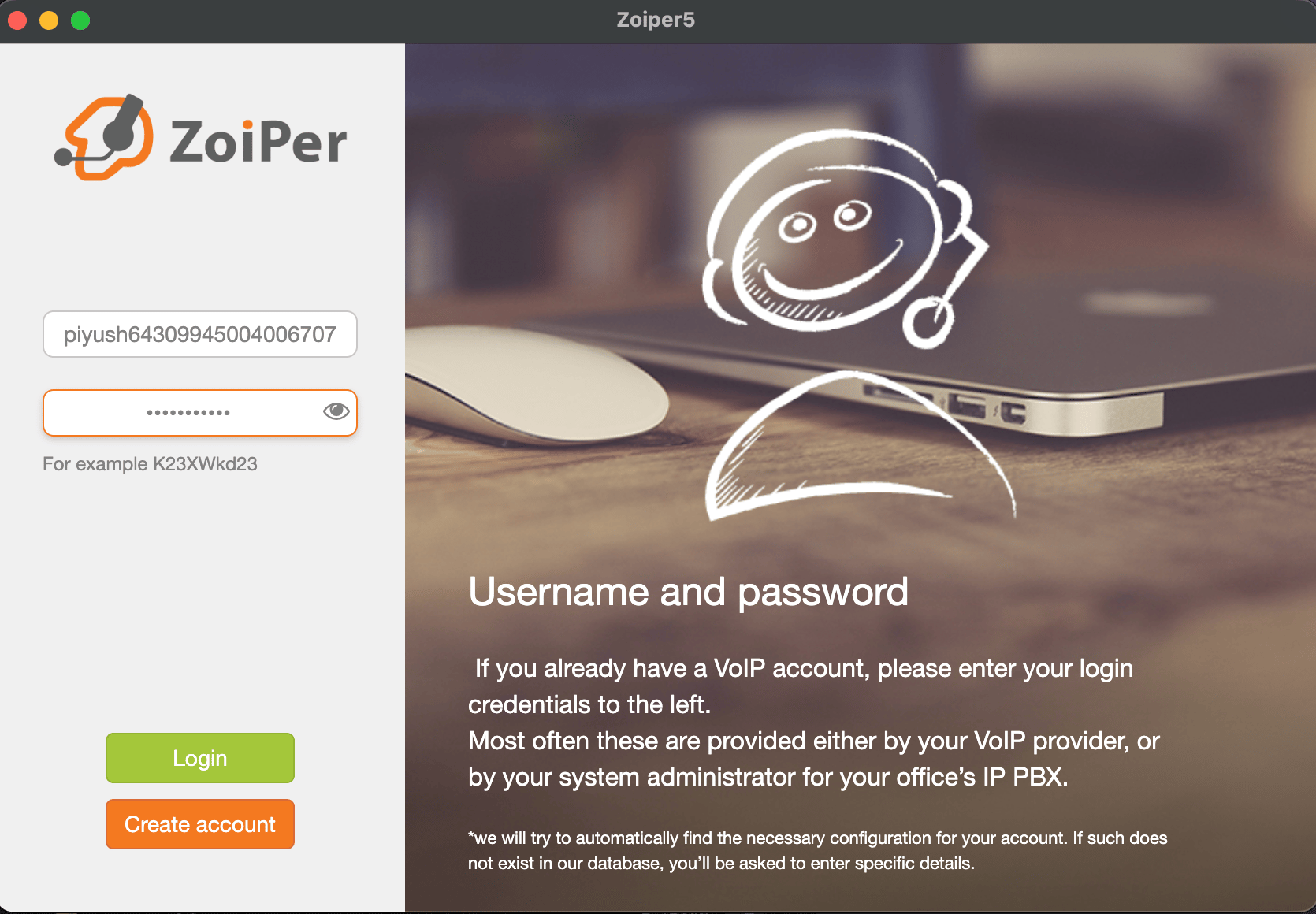
4. Enter the credentials you created in Step 2:
* **User / Username:** Your SIP Username (e.g., `piyush123`). Note: Zoiper might append a long string to your username, this is normal.
* **Password:** The password you set (e.g., `password123`).
*Make note of the generated SIP URI (e.g., `johndoe123@registrar.vobiz.ai`) and password.*
***
## Step 3: Configure Zoiper (Softphone)
Now, configure your softphone to connect to the Vobiz SIP Registrar.
1. Open **Zoiper**.
2. Go to **Settings > Accounts** and click **Add Account**.
3. Select **SIP** as the account type.
4. Enter the credentials you created in Step 2:
* **User / Username:** Your SIP Username (e.g., `piyush123`). Note: Zoiper might append a long string to your username, this is normal.
* **Password:** The password you set (e.g., `password123`).
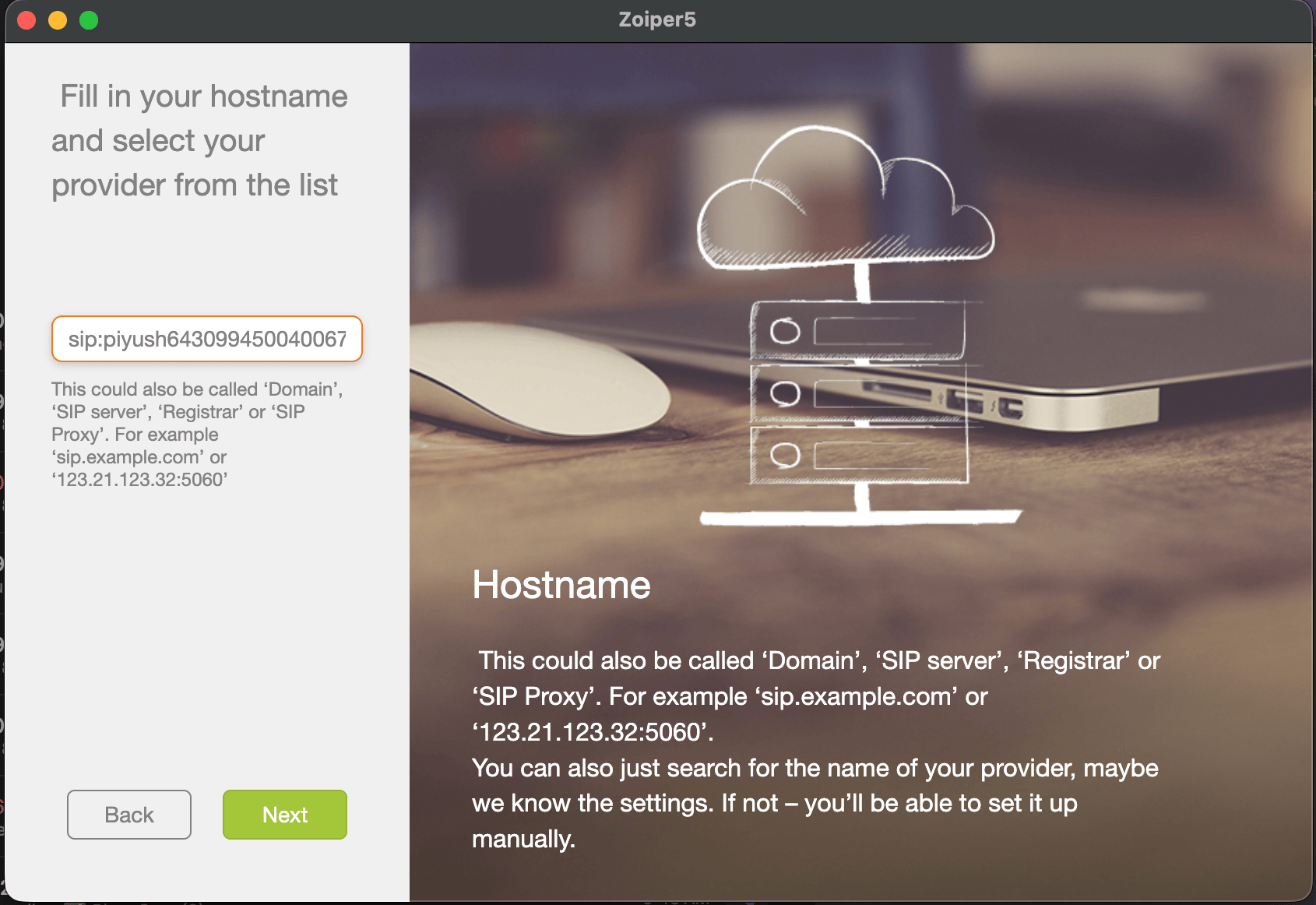 * **Domain / Outbound Proxy:** `registrar.vobiz.ai`
5. Click **Register** or **Next**. You should see a green checkmark indicating successful registration.
***
## Step 4: Make an Outbound Call
1. In Zoiper, open the dialpad.
2. Dial the destination phone number (e.g., `+91XXXXXXXXXX`).
3. Press the **Call** button.
* **Domain / Outbound Proxy:** `registrar.vobiz.ai`
5. Click **Register** or **Next**. You should see a green checkmark indicating successful registration.
***
## Step 4: Make an Outbound Call
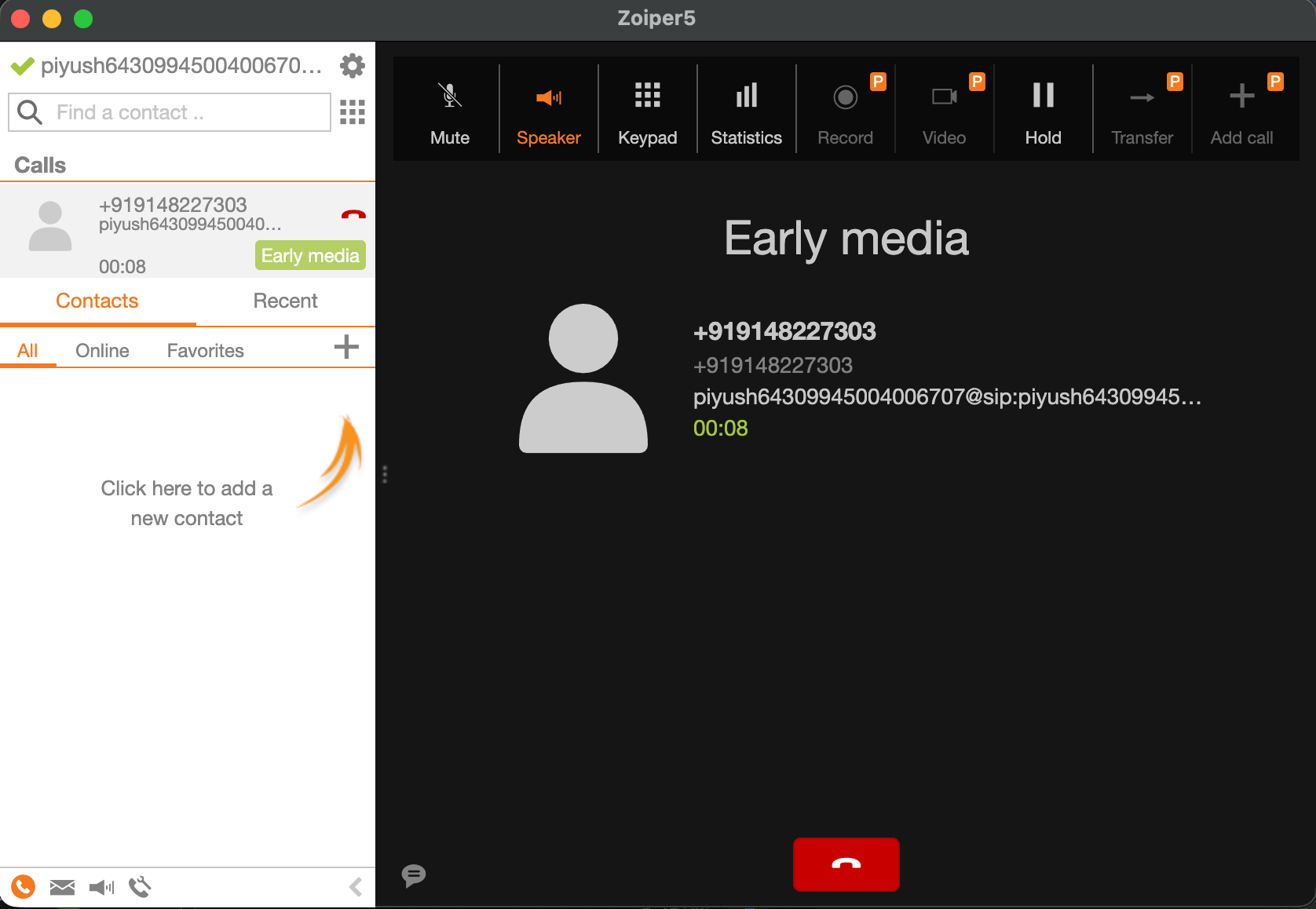
1. In Zoiper, open the dialpad.
2. Dial the destination phone number (e.g., `+91XXXXXXXXXX`).
3. Press the **Call** button.
 ### What Happens Next?
1. Zoiper sends the call to `registrar.vobiz.ai`.
2. Vobiz sees the call is from your SIP Endpoint and looks up the assigned Application.
3. Vobiz makes an HTTP request to your webhook URL (`https://occasionally-isoelastic-dorie.ngrok-free.dev`) passing `To=+91XXXXXXXXXX`.
4. Your server responds with the `` XML.
5. Vobiz initiates the outbound call to the destination network, masking it with your `callerId`.
### What Happens Next?
1. Zoiper sends the call to `registrar.vobiz.ai`.
2. Vobiz sees the call is from your SIP Endpoint and looks up the assigned Application.
3. Vobiz makes an HTTP request to your webhook URL (`https://occasionally-isoelastic-dorie.ngrok-free.dev`) passing `To=+91XXXXXXXXXX`.
4. Your server responds with the `` XML.
5. Vobiz initiates the outbound call to the destination network, masking it with your `callerId`.