> ## Documentation Index
> Fetch the complete documentation index at: https://docs.vobiz.ai/llms.txt
> Use this file to discover all available pages before exploring further.
# Retell AI integration (dashboard)
> Connect Retell AI to Vobiz SIP trunking without code - no-code dashboard setup for outbound and inbound AI voice calls in 130+ countries.
This guide shows how to integrate Retell AI with Vobiz using the dashboard so your AI agents can make outbound calls to any phone number.
**Prefer using API/CLI?** Check out the [API setup guide](/integrations/retellai-api) for curl commands and programmatic integration.
## What you'll build
A no-code outbound calling setup where your Retell AI agent reaches customers using your Vobiz phone number and SIP trunk for transport.
## Prerequisites
* **Retell AI account** → [Sign up](https://dashboard.retellai.com)
* **Vobiz account** with active balance → [Create account](https://console.vobiz.ai/auth/signup)
* **Retell AI agent** created → [Create in dashboard](https://dashboard.retellai.com/agents)
* **Phone number** from Vobiz (for caller ID)
## Step-by-step setup
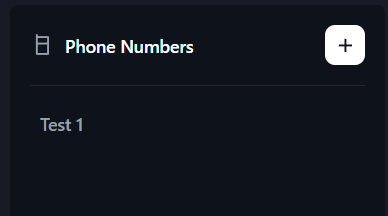
Log in to the [Retell Dashboard](https://dashboard.retellai.com), navigate to **Phone Numbers** in the sidebar, and click the **+** button to add a new number.
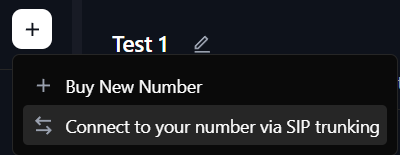
Choose **Connect to your number via SIP trunking**. This option lets you use your own Vobiz phone number and SIP infrastructure instead of buying a number from Retell.
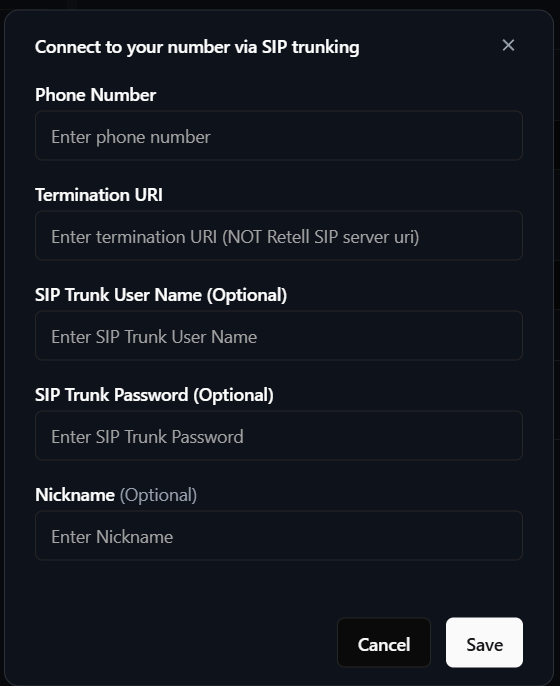
Fill in the required fields:
| Field | Value |
| ------------------- | ------------------------------------------------------------------------------------------------- |
| Phone Number | Your Vobiz number in E.164 format (for example, `+1234567890`) |
| Termination URI | Your Vobiz SIP domain (for example, `abc123.sip.vobiz.ai`) - **do not** include the `sip:` prefix |
| SIP Trunk User Name | Your Vobiz trunk username |
| SIP Trunk Password | Your Vobiz trunk password |
| Nickname | Friendly name (for example, `Vobiz Main Line`) |
Click **Save** to complete the configuration.
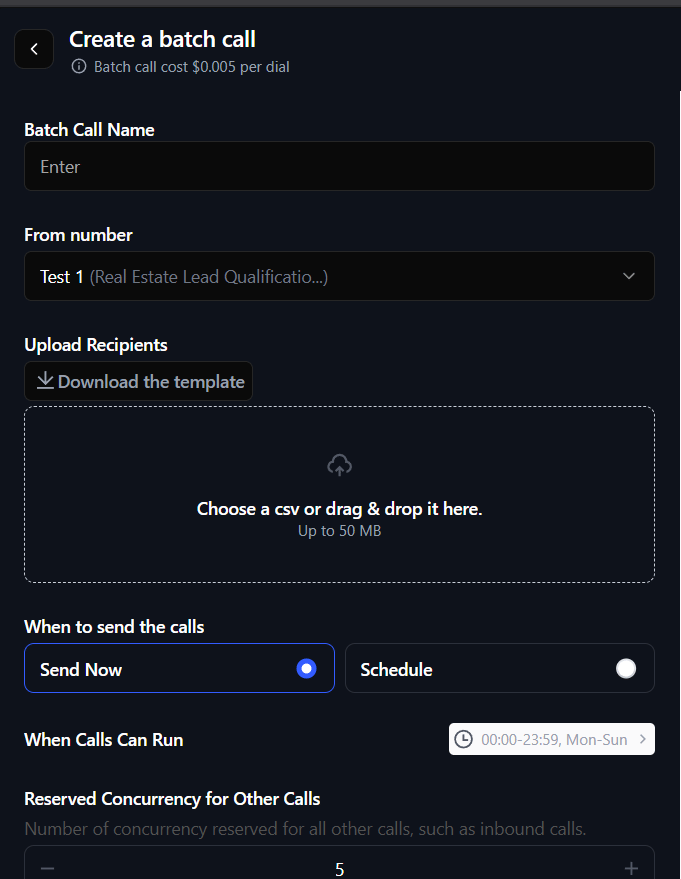
Click on your configured phone number and select **Create a batch call**. Fill in:
* **Batch Call Name** - campaign name (for example, `Customer Outreach`)
* **From number** - your configured Vobiz number
* **Upload Recipients** - CSV file with phone numbers
* **When to send** - `Send Now` or `Schedule`
Click **Send** or **Schedule** to launch the campaign.
**Dashboard setup complete!** Your Retell AI agent can now make outbound calls through Vobiz SIP infrastructure.
## Where to find your Vobiz credentials
* **Console:** [Vobiz Console](https://console.vobiz.ai) → **Trunks** → your trunk
* **API:** see the [SIP trunks documentation](/trunks)
For CSV format requirements, see the [Retell batch calling docs](https://docs.retellai.com).
## Troubleshooting
### "Phone number not found"
Phone number not configured in Retell.
* Verify the number is in E.164 format (`+countrycode + number`).
* Re-configure the phone number using the steps above.
* Check that the number exists in the [Vobiz Console](https://console.vobiz.ai).
### Call fails immediately
SIP authentication or configuration issue.
* Verify your Vobiz username and password in the [Vobiz Console](https://console.vobiz.ai).
* Use the exact Vobiz domain (for example, `abc123.sip.vobiz.ai`).
* Do **not** include a `sip:` prefix.
* Try a different transport type (TCP vs UDP) in the trunk config.
### Agent doesn't speak
Agent not configured or not published.
* Ensure the agent is published in [Retell Dashboard → Agents](https://dashboard.retellai.com/agents).
* Check the agent has a voice configured.
* Verify the agent ID matches the phone number config.
Need more detail? See the [API troubleshooting guide](/integrations/retellai-api#troubleshooting) for additional error scenarios.
## Next steps
* **Customize your agent** - configure voice, personality, and prompts in [Retell Dashboard → Agents](https://dashboard.retellai.com/agents).
* **View call analytics** - monitor call logs and transcripts in **Retell Dashboard** → **Calls**.
* **Automate with API** - trigger calls programmatically using the [Retell AI API setup guide](/integrations/retellai-api).
* **Monitor usage** - track your Vobiz balance and call records.
 | Field | Value |
| ------------------- | ------------------------------------------------------------------------------------------------- |
| Phone Number | Your Vobiz number in E.164 format (for example, `+1234567890`) |
| Termination URI | Your Vobiz SIP domain (for example, `abc123.sip.vobiz.ai`) - **do not** include the `sip:` prefix |
| SIP Trunk User Name | Your Vobiz trunk username |
| SIP Trunk Password | Your Vobiz trunk password |
| Nickname | Friendly name (for example, `Vobiz Main Line`) |
Click **Save** to complete the configuration.
| Field | Value |
| ------------------- | ------------------------------------------------------------------------------------------------- |
| Phone Number | Your Vobiz number in E.164 format (for example, `+1234567890`) |
| Termination URI | Your Vobiz SIP domain (for example, `abc123.sip.vobiz.ai`) - **do not** include the `sip:` prefix |
| SIP Trunk User Name | Your Vobiz trunk username |
| SIP Trunk Password | Your Vobiz trunk password |
| Nickname | Friendly name (for example, `Vobiz Main Line`) |
Click **Save** to complete the configuration.
 * **Batch Call Name** - campaign name (for example, `Customer Outreach`)
* **From number** - your configured Vobiz number
* **Upload Recipients** - CSV file with phone numbers
* **When to send** - `Send Now` or `Schedule`
Click **Send** or **Schedule** to launch the campaign.
* **Batch Call Name** - campaign name (for example, `Customer Outreach`)
* **From number** - your configured Vobiz number
* **Upload Recipients** - CSV file with phone numbers
* **When to send** - `Send Now` or `Schedule`
Click **Send** or **Schedule** to launch the campaign.