> ## Documentation Index
> Fetch the complete documentation index at: https://docs.vobiz.ai/llms.txt
> Use this file to discover all available pages before exploring further.
# ElevenLabs integration (dashboard)
> ElevenLabs connects to Vobiz SIP trunking without code - no-code dashboard setup for AI voice agents with ultra-realistic TTS voices in 130+ countries.
This guide shows how to integrate ElevenLabs with Vobiz using the dashboard. By the end you'll have **outbound calling** set up so your conversational AI agent can call any real phone number with an ultra-realistic voice.
**Prefer using API/CLI?** Check out the [API setup guide](/integrations/elevenlabs-api) for curl commands and programmatic integration.
## What you'll build
A no-code outbound and inbound calling integration where your ElevenLabs conversational agent answers and places calls through Vobiz SIP trunking, using ElevenLabs' ultra-realistic voices.
## Prerequisites
* **Vobiz account** with a SIP trunk → [Create account](https://console.vobiz.ai/auth/signup)
* **ElevenLabs account** → [Sign up](https://elevenlabs.io)
* **ElevenLabs agent** created → [Create in dashboard](https://elevenlabs.io/app)
* **Phone number** from Vobiz (for caller ID)
## Outbound calls
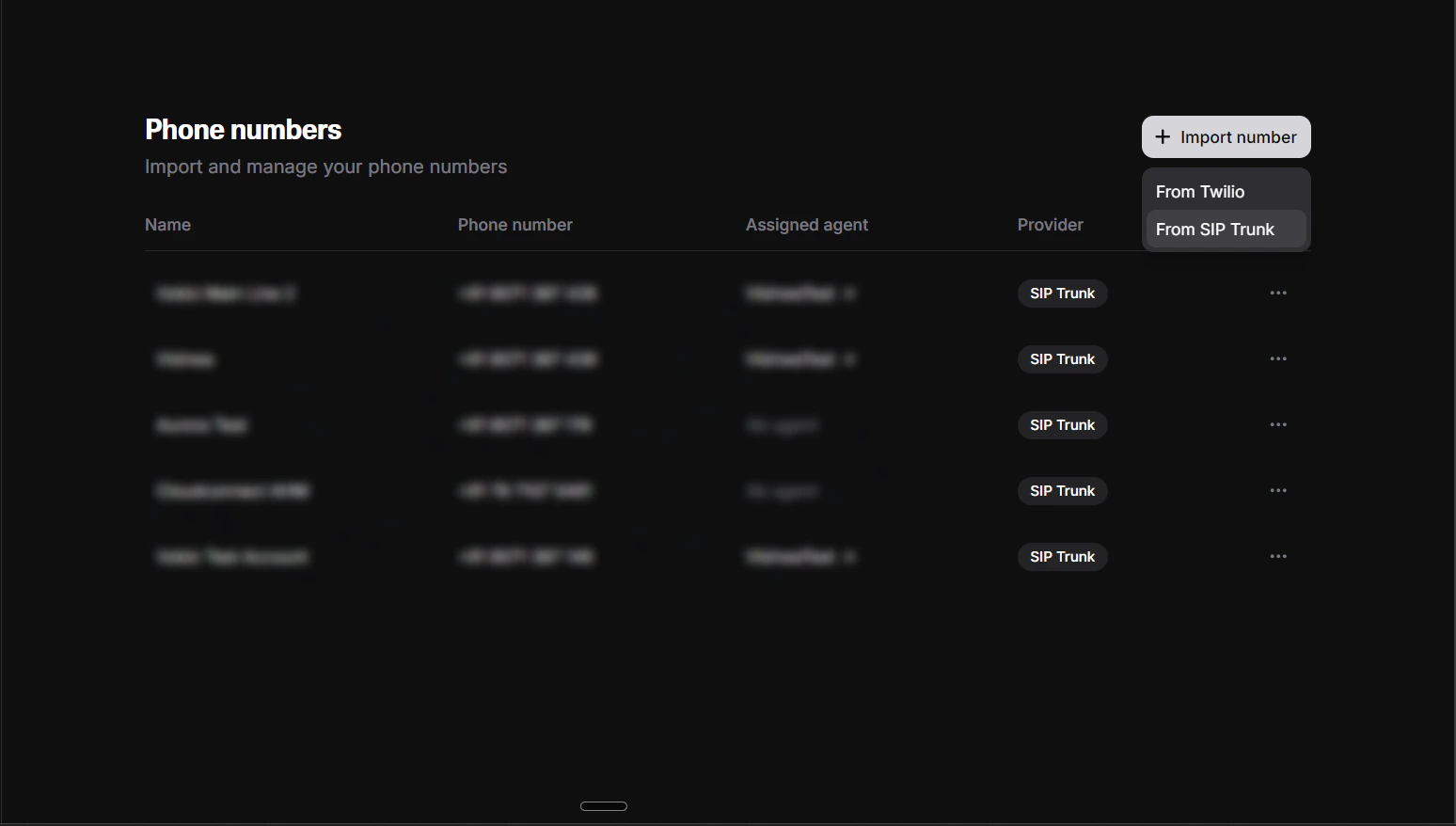
1. Import phone number
1. Log in to the [ElevenLabs Dashboard](https://elevenlabs.io/app).
2. Navigate to **Phone Numbers** in the sidebar.
3. Click **Import Number**.
4. Select **Import from SIP Trunk**.
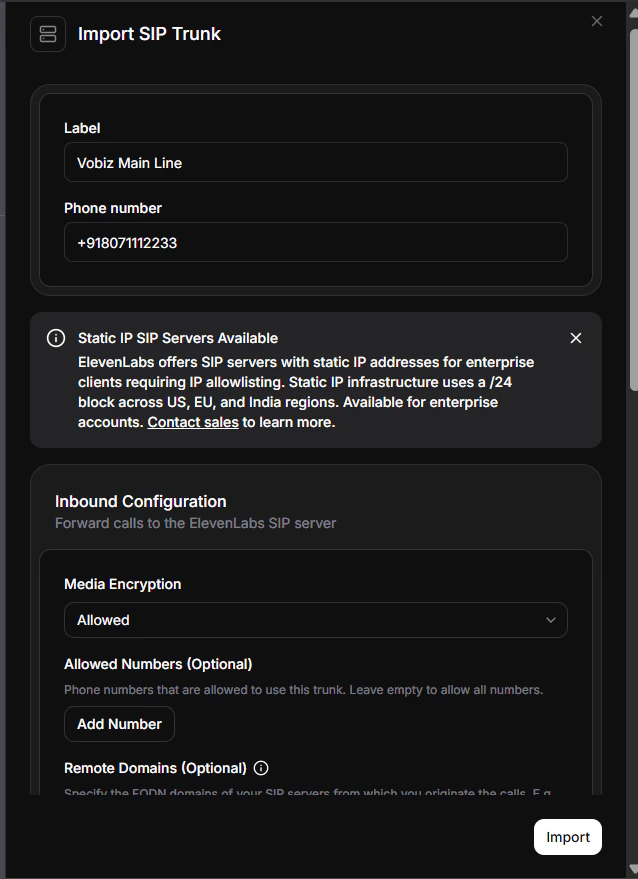
2. Label phone number
Enter:
* **Label** - a name for easy identification (for example, `Vobiz Main Line`).
* **Phone Number** - your Vobiz number (for example, `+911234567890`). Include the country code with `+`, or use the local format (`01234567890`).
Click **Next** to continue to outbound configuration.
Need a phone number? See the [phone numbers documentation](/account-phone-number/list-inventory-numbers) to purchase one from Vobiz.
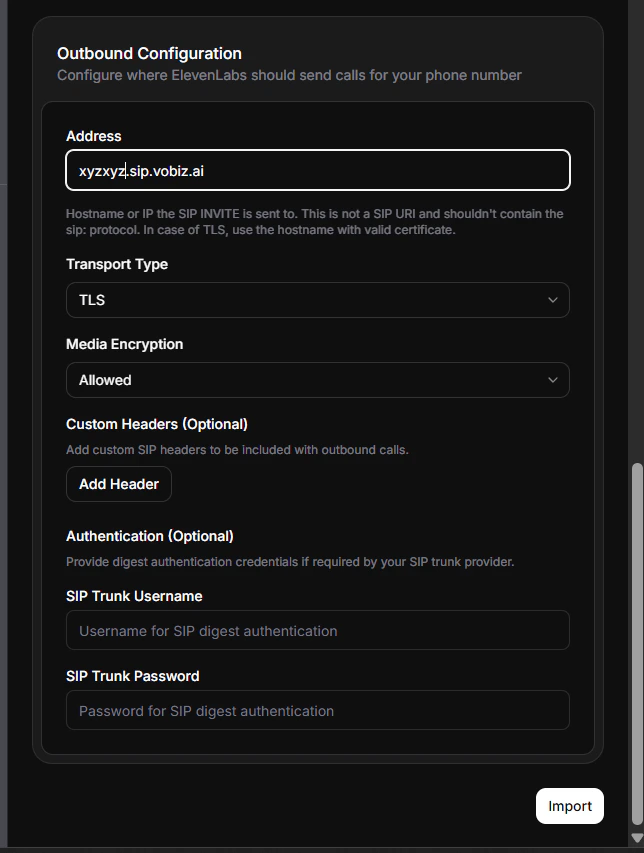
3. Configure outbound settings
| Field | Value |
| --------------------------- | ----------------------------------- |
| Transport Type | `TCP` |
| Address (SIP Trunk Address) | `.sip.vobiz.ai` |
| SIP Trunk Username | `` |
| SIP Trunk Password | `` |
To find your Vobiz credentials:
1. Log in to the [Vobiz Console](https://console.vobiz.ai).
2. Navigate to **SIP Trunk** → **Outbound Trunks** → **Trunks**.
3. Click on your trunk.
4. Scroll to the **Authentication & Linking** section.
Click **Save** or **Import** to complete the setup.
4. Make your first call
1. In the ElevenLabs Dashboard, navigate to **Phone Numbers**.
2. Select the phone number you just imported.
3. Click **Make Outbound Call**.
4. Select your agent from the dropdown - this is the conversational AI agent you created in ElevenLabs.
5. Enter the destination phone number (for example, `+919988776655`) - must include country code.
6. Click **Call** or **Start Test Call**.
The call initiates immediately. The destination phone rings, and when answered your ElevenLabs agent speaks.
Verify your call
To view call logs and transcripts:
1. Go to **Agents Platform** → your agent.
2. Click **Call History** or **Conversations**.
3. View call details, transcripts, and recordings.
**Outbound complete!** You can now make calls from the ElevenLabs Dashboard anytime.
## Inbound calls
To allow people to call your AI agent, configure inbound calling.
1. Configure SIP URI
In your Vobiz SIP trunk configuration or Application Answer URL, point incoming calls to the ElevenLabs SIP URI:
| Setting | Value |
| --------- | ---------------------------- |
| SIP URI | `sip.rtc.elevenlabs.io:5060` |
| Transport | `TCP` |
2. Import the number
Go to [ElevenLabs Phone Numbers](https://elevenlabs.io/app/agents/phone-numbers) and click **Import from SIP Trunk**.
3. Configure number details
Enter a label (for example, `Main Line`) and your Vobiz phone number.
4. Attach to agent
Once added, locate the number in your list and click **Attach** to link it to an agent.
5. Select the agent
To verify the setup, dial the phone number you attached from any phone. The selected ElevenLabs agent should pick up and start the conversation.
## Troubleshooting
SIP 408 request timeout
Vobiz trunk cannot reach ElevenLabs SIP servers.
* Verify the SIP trunk address is correct (for example, `abc123def.sip.vobiz.ai`).
* Check the transport type is set to `TCP`.
* Verify your Vobiz trunk status is `active` in the [Vobiz Console](https://console.vobiz.ai).
SIP authentication failed
Wrong username or password.
* Verify username and password in [Vobiz Console](https://console.vobiz.ai) → **Trunks**.
* Ensure credentials match exactly (case-sensitive).
* Re-enter credentials in the ElevenLabs dashboard.
Call connects but silent
Agent configuration issue or voice not set.
* Verify the agent has a `First Message` configured.
* Check the agent has a valid voice selected.
* Test the voice in the ElevenLabs dashboard first.
* View call logs in the [ElevenLabs Dashboard](https://elevenlabs.io/app) for errors.
Call doesn't connect
Wrong phone number format or trunk configuration.
* Use E.164 format: `+919988776655` (with `+`).
* Or local format: `09988776655` (without `+`).
* Verify your Vobiz trunk is active.
Need more detail? See the [API troubleshooting guide](/integrations/elevenlabs-api#troubleshooting) for additional error scenarios.
## Next steps
* **Customize your agent** - configure voice, personality, prompts, and first message in the [ElevenLabs Dashboard](https://elevenlabs.io/app).
* **View call analytics** - monitor call logs and transcripts in **ElevenLabs Dashboard** → **Call History**.
* **Automate with API** - see the [ElevenLabs API setup guide](/integrations/elevenlabs-api) to trigger calls programmatically.
* **Monitor usage** - track your Vobiz balance and call records.
 1. Log in to the [ElevenLabs Dashboard](https://elevenlabs.io/app).
2. Navigate to **Phone Numbers** in the sidebar.
3. Click **Import Number**.
4. Select **Import from SIP Trunk**.
1. Log in to the [ElevenLabs Dashboard](https://elevenlabs.io/app).
2. Navigate to **Phone Numbers** in the sidebar.
3. Click **Import Number**.
4. Select **Import from SIP Trunk**.
 Enter:
* **Label** - a name for easy identification (for example, `Vobiz Main Line`).
* **Phone Number** - your Vobiz number (for example, `+911234567890`). Include the country code with `+`, or use the local format (`01234567890`).
Click **Next** to continue to outbound configuration.
Enter:
* **Label** - a name for easy identification (for example, `Vobiz Main Line`).
* **Phone Number** - your Vobiz number (for example, `+911234567890`). Include the country code with `+`, or use the local format (`01234567890`).
Click **Next** to continue to outbound configuration.
 | Field | Value |
| --------------------------- | ----------------------------------- |
| Transport Type | `TCP` |
| Address (SIP Trunk Address) | `
| Field | Value |
| --------------------------- | ----------------------------------- |
| Transport Type | `TCP` |
| Address (SIP Trunk Address) | `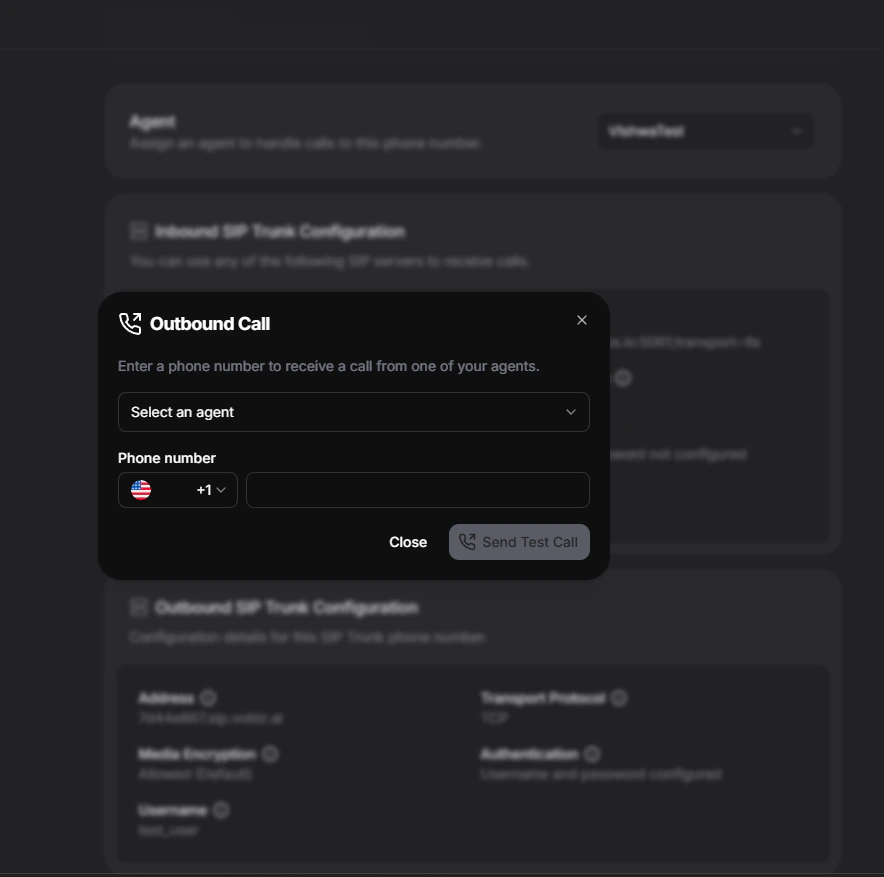 1. In the ElevenLabs Dashboard, navigate to **Phone Numbers**.
2. Select the phone number you just imported.
3. Click **Make Outbound Call**.
4. Select your agent from the dropdown - this is the conversational AI agent you created in ElevenLabs.
5. Enter the destination phone number (for example, `+919988776655`) - must include country code.
6. Click **Call** or **Start Test Call**.
The call initiates immediately. The destination phone rings, and when answered your ElevenLabs agent speaks.
1. In the ElevenLabs Dashboard, navigate to **Phone Numbers**.
2. Select the phone number you just imported.
3. Click **Make Outbound Call**.
4. Select your agent from the dropdown - this is the conversational AI agent you created in ElevenLabs.
5. Enter the destination phone number (for example, `+919988776655`) - must include country code.
6. Click **Call** or **Start Test Call**.
The call initiates immediately. The destination phone rings, and when answered your ElevenLabs agent speaks.
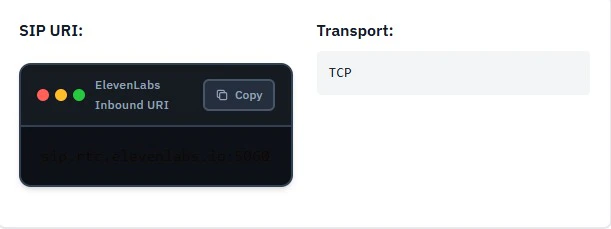
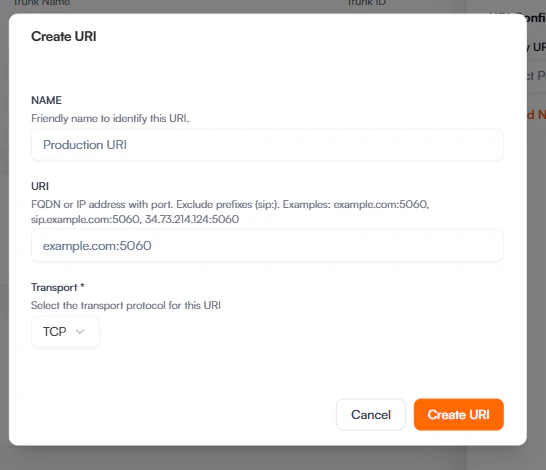 | Setting | Value |
| --------- | ---------------------------- |
| SIP URI | `sip.rtc.elevenlabs.io:5060` |
| Transport | `TCP` |
| Setting | Value |
| --------- | ---------------------------- |
| SIP URI | `sip.rtc.elevenlabs.io:5060` |
| Transport | `TCP` |
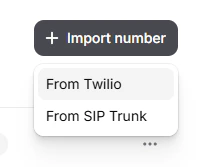
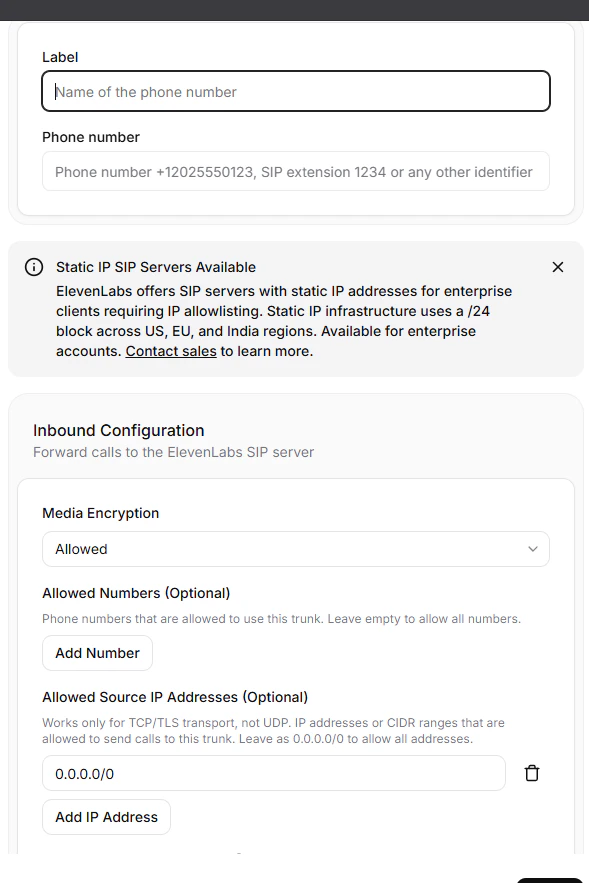

 To verify the setup, dial the phone number you attached from any phone. The selected ElevenLabs agent should pick up and start the conversation.
## Troubleshooting
To verify the setup, dial the phone number you attached from any phone. The selected ElevenLabs agent should pick up and start the conversation.
## Troubleshooting