> ## Documentation Index
> Fetch the complete documentation index at: https://docs.vobiz.ai/llms.txt
> Use this file to discover all available pages before exploring further.
# Bolna integration
> Connect Bolna.ai voice agents to Vobiz SIP trunking for global inbound and outbound calling across 130+ countries, including India.
 [Bolna.ai](https://bolna.ai) is a platform for building conversational voice agents. Integrating with Vobiz gives your agents global calling capabilities through premium SIP trunking with superior reliability.
## What you'll build
A no-code integration that lets your Bolna voice agents make outbound calls and answer inbound calls on Vobiz phone numbers, with provisioning available directly inside the Bolna platform.
## Prerequisites
* **Vobiz account** with active balance - you need your `Auth Token` and `Auth Secret` from the Vobiz Console → [Create account](https://console.vobiz.ai/auth/signup)
* **Bolna.ai account** → [Sign up at bolna.ai](https://bolna.ai)
## Step 1: Add Vobiz as a provider
Log in to the [Bolna platform](https://platform.bolna.ai) and navigate to the **Providers** section.
Locate the Vobiz provider option and enter your **Vobiz Auth Token** and **Auth Secret**.
Find your API credentials in the Vobiz Console under **Dashboard → Settings → API Keys**.
| Credential | Where to find |
| ------------- | ----------------------------------- |
| `Auth Token` | Vobiz Console → Settings → API Keys |
| `Auth Secret` | Vobiz Console → Settings → API Keys |
[Bolna.ai](https://bolna.ai) is a platform for building conversational voice agents. Integrating with Vobiz gives your agents global calling capabilities through premium SIP trunking with superior reliability.
## What you'll build
A no-code integration that lets your Bolna voice agents make outbound calls and answer inbound calls on Vobiz phone numbers, with provisioning available directly inside the Bolna platform.
## Prerequisites
* **Vobiz account** with active balance - you need your `Auth Token` and `Auth Secret` from the Vobiz Console → [Create account](https://console.vobiz.ai/auth/signup)
* **Bolna.ai account** → [Sign up at bolna.ai](https://bolna.ai)
## Step 1: Add Vobiz as a provider
Log in to the [Bolna platform](https://platform.bolna.ai) and navigate to the **Providers** section.
Locate the Vobiz provider option and enter your **Vobiz Auth Token** and **Auth Secret**.
Find your API credentials in the Vobiz Console under **Dashboard → Settings → API Keys**.
| Credential | Where to find |
| ------------- | ----------------------------------- |
| `Auth Token` | Vobiz Console → Settings → API Keys |
| `Auth Secret` | Vobiz Console → Settings → API Keys |
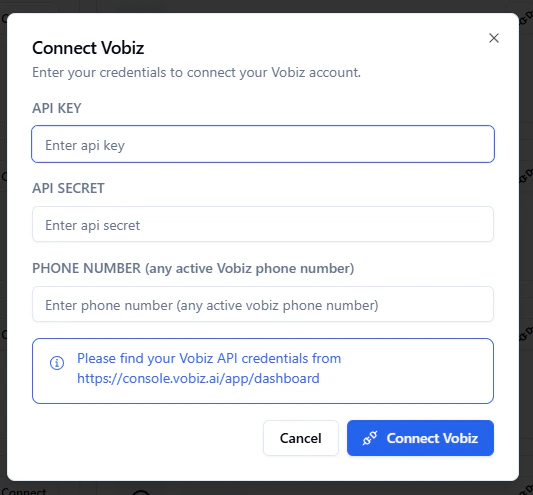 Once you've entered your credentials, the Vobiz telephony status shows as **Connected**.
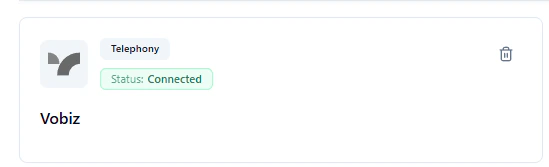 You've successfully authorized Bolna to use Vobiz for making phone calls.
## Step 2: Configure outbound calls
To enable your agents to make outbound calls, select **Vobiz** as the telephony provider in the agent settings.
In the **Call Agent** section, select **Vobiz** from the provider dropdown.
You've successfully authorized Bolna to use Vobiz for making phone calls.
## Step 2: Configure outbound calls
To enable your agents to make outbound calls, select **Vobiz** as the telephony provider in the agent settings.
In the **Call Agent** section, select **Vobiz** from the provider dropdown.
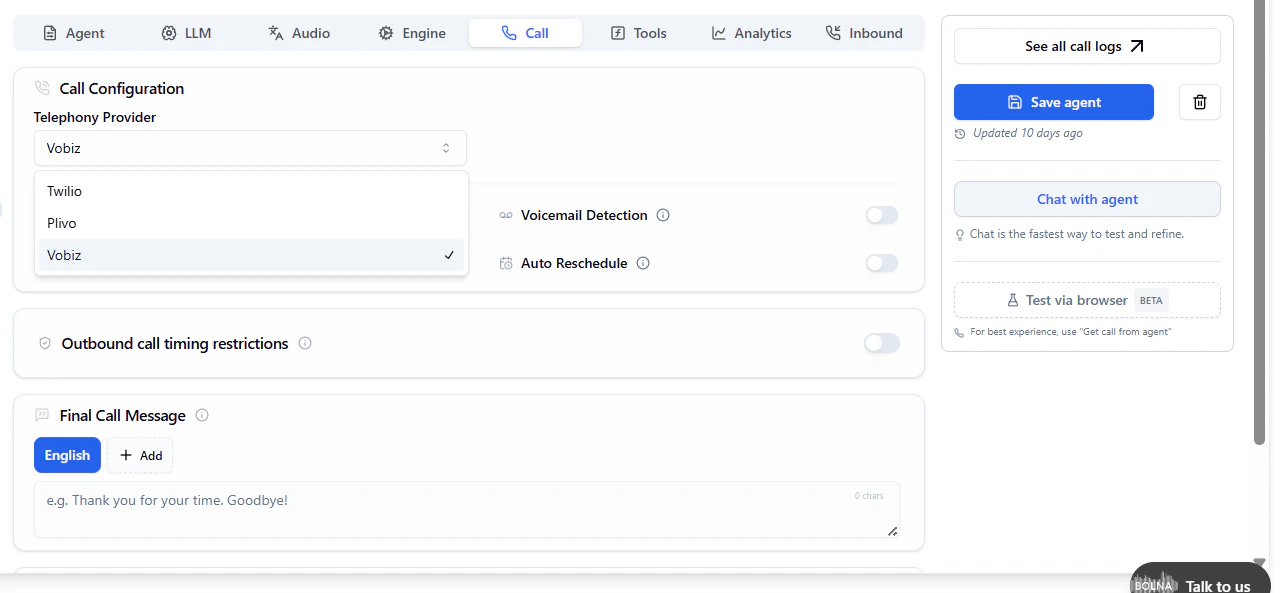 Your AI agent will now route outbound calls directly through your Vobiz SIP trunk.
## Step 3: Set up inbound calls
Configure which agent answers incoming calls to your Vobiz numbers.
Your AI agent will now route outbound calls directly through your Vobiz SIP trunk.
## Step 3: Set up inbound calls
Configure which agent answers incoming calls to your Vobiz numbers.
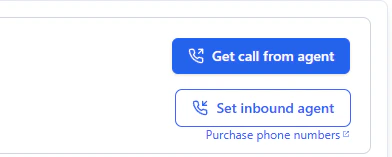 1. Go to the **Inbound** section in Bolna.
2. Select the agent that will handle incoming calls.
3. Select the specific Vobiz phone numbers to assign to the chosen agent.
1. Go to the **Inbound** section in Bolna.
2. Select the agent that will handle incoming calls.
3. Select the specific Vobiz phone numbers to assign to the chosen agent.
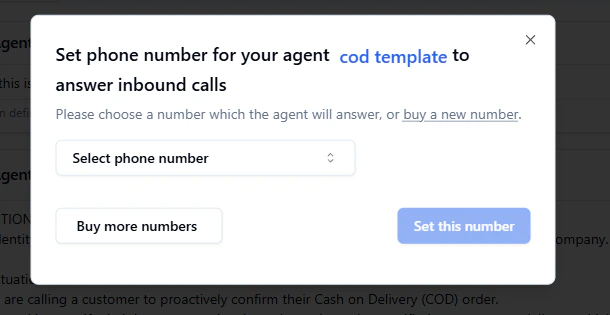 ## Step 4: Assign phone numbers
Provision and buy new phone numbers directly within the Bolna.ai platform using Vobiz inventory.
If you already have numbers in your Vobiz account, they appear automatically in the selection list once you've added your credentials as a provider.
## Resources
| Resource | Link |
| ------------------- | ------------------------------------------- |
| Bolna documentation | [docs.bolna.ai](https://docs.bolna.ai) |
| Vobiz support | [support@vobiz.ai](mailto:support@vobiz.ai) |
| Bolna support | [support@bolna.ai](mailto:support@bolna.ai) |
## Step 4: Assign phone numbers
Provision and buy new phone numbers directly within the Bolna.ai platform using Vobiz inventory.
If you already have numbers in your Vobiz account, they appear automatically in the selection list once you've added your credentials as a provider.
## Resources
| Resource | Link |
| ------------------- | ------------------------------------------- |
| Bolna documentation | [docs.bolna.ai](https://docs.bolna.ai) |
| Vobiz support | [support@vobiz.ai](mailto:support@vobiz.ai) |
| Bolna support | [support@bolna.ai](mailto:support@bolna.ai) |